
Model setup recipes
Last updated
Gemma 4 12B serving: Q4 on desktop and BF16 on a server
Run Gemma 4 12B as Q4 desktop or BF16 server
Gemma 4 12B takes text questions and generates answers; supported model and app combinations can also process image or audio input. This guide prepares a Q4 conversion for a 16–24 GB desktop or the official BF161 checkpoint2 for a larger NVIDIA system, then verifies a local API3 response.
The two paths use the same model family but different file formats and runtimes. On desktop, choose a GGUF4 or MLX5 Q4 file supported by the app; the official server example uses google/gemma-4-12B-it BF16 weights on NVIDIA. Verify loading and a text response first, then extend context or add image and audio input only when needed.
Choose the file format and hardware path
For a 16 GB system, use a GGUF or MLX Q4 conversion supported by your current app. About 7.5 GB is only the file size: after loading, the runtime6, operating system, conversation KV cache7, and other apps share memory. Once downloaded, confirm the actual identifier and format in the app's model list and start with a short context.
The official google/gemma-4-12B-it checkpoint is about 24 GB in BF16. The vLLM example below is an NVIDIA server path for these official weights; it is separate from the Q4 desktop command. When comparing results, record that both weight precision and runtime have changed.
Begin with a short Korean text question rather than an image or audio clip. If it completes, you have verified model loading and the text path. Then try a passage to summarize or a document question with a known answer to assess the baseline separately from added input features.
- Context length, RoPE and sliding-window attention
- GGUF vs MLX: which model format should you download?
- Qwen3.6 35B-A3B setup: NVFP4 on Mac, RTX, and DGX Spark
- GLM-5.3-Flash Serving Guide: A 320B Server-Scale MoE Recipe
- When OpenRouter Is Unavailable, How Do You Switch Your App to a Local LLM?
- Search English documents with a small model: UIBK-Embedding-v1
- Gemma 4 26B-A4B MTP: How Speed Changes Between One and Many Requests

Launch with either LM Studio or official vLLM
The desktop command uses the model identifier shown in LM Studio, loads the Q4 file, and sets an 8K context limit. The --gpu8=max option requests GPU offload9. After launch, inspect the app's loading status and logs to see the path actually used; the setting alone does not establish that every weight is on the GPU.
The official server runs google/gemma-4-12B-it with an 8K context and GPU memory utilization of 0.90. The example's 127.0.0.1 binding makes the server process listen on the local interface. Check LM Studio's network-serving scope too; if you change it to allow other devices, configure authentication and firewall rules separately.
After the process starts, confirm that model loading is complete and that the intended model name is selected, then send one request. Change context or concurrency only after that request completes normally; changing one variable at a time makes memory and latency effects easier to track.
The LM Studio command prompts10 you to choose a downloaded file. Select the Gemma 4 12B file seen in lms ls and wait for loading. This example uses the API alias gemma-local to match the later request. For vLLM, leave the server terminal running and send the API request from another terminal.
# 1. List models
lms ls

# 2. Load the model with maximum GPU offload and an 8K context
lms load --gpu=max --context-length=8192 --identifier gemma-local

# 3. Start the local server daemon (127.0.0.1:1234)
lms server start --port 1234vllm serve google/gemma-4-12B-it --host 127.0.0.1 --port 8000 --max-model-len 8192 --gpu-memory-utilization 0.90Check a short answer and a real task through the API
For LM Studio, request a Korean introduction using the API alias gemma-local assigned earlier. For vLLM, use google/gemma-4-12B-it in the port-8000 example. Check that the full response arrives in the requested language. Streaming shows delivery of the answer; record exact generation speed in a separate measurement.
Send the same request several times and record time to first token11, generation speed, and peak memory. With a typical document to summarize, measure time to first response separately from end-to-end completion. A short self-introduction alone does not represent real task quality.
Also ask a question with a verifiable answer, such as a date or owner named in the document. Keep the same prompt and file when comparing settings so you can identify what changed the result.
For LM Studio, use the request to port 1234 below. If you chose the BF16 vLLM server, use the following port-8000 request. Check the name in /v1/models first so your app uses the same value.
curl -N http://127.0.0.1:1234/v1/chat/completions   -H "Content-Type: application/json"   -d '{
    "model": "gemma-local",
    "messages": [
      {"role": "user", "content": "한국어로 자기소개를 간단히 작성해줘."}
    ],
    "max_tokens": 512,
    "stream": true
}'curl --fail-with-body http://127.0.0.1:8000/v1/models
curl --fail-with-body http://127.0.0.1:8000/v1/chat/completions -H 'Content-Type: application/json' -d '{"model":"google/gemma-4-12B-it","messages":[{"role":"user","content":"Reply with one short sentence."}],"max_tokens":64}'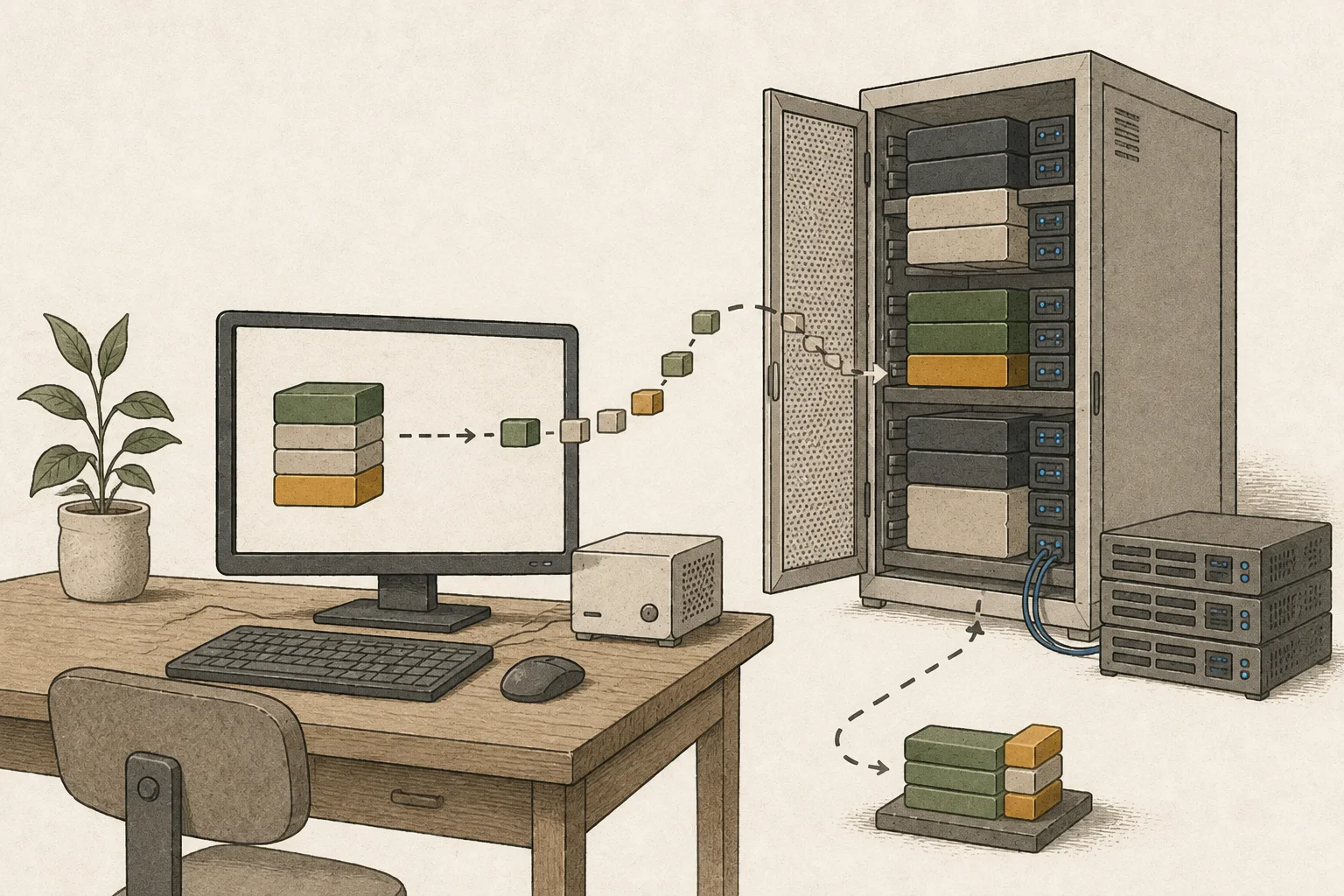
Add image and audio input one at a time
Once the text baseline completes reliably, add an image input supported by the actual app and model combination. Keep the text question fixed and change only the image to make input-path and memory changes easier to compare. Attaching a file in the interface does not by itself confirm that the image reached the model; verify that it was included in the request.
For audio, first define whether the task is transcription or conversation about speech, then test that the recording reaches the model through the app. Avoid combining images, recordings, and long documents at once: isolating inputs makes failures easier to diagnose and memory use easier to observe.
If memory runs short, first reduce context and concurrent requests and see whether the text baseline recovers. Q4 weight format and KV-cache precision are separate settings, so adjust them as such. If the same limit recurs in normal work, consider a larger-memory system based on the headroom you actually need.
Choose only the path your work needs
If the Q4 setup handles your documents and text requests well and the wait is acceptable, you may not need larger weights. When testing another candidate, use the same file, question, and context, then compare task success and end-to-end time.
If you plan to operate the official BF16 server, separately consider an NVIDIA system that can hold about 24 GB of weights plus runtime headroom. Decide which files and input features you will actually use before setting purchase requirements. Record the working model file, app version, context, and server settings as a baseline for retesting after updates.
Check runtime compatibility for an NVFP4 distribution
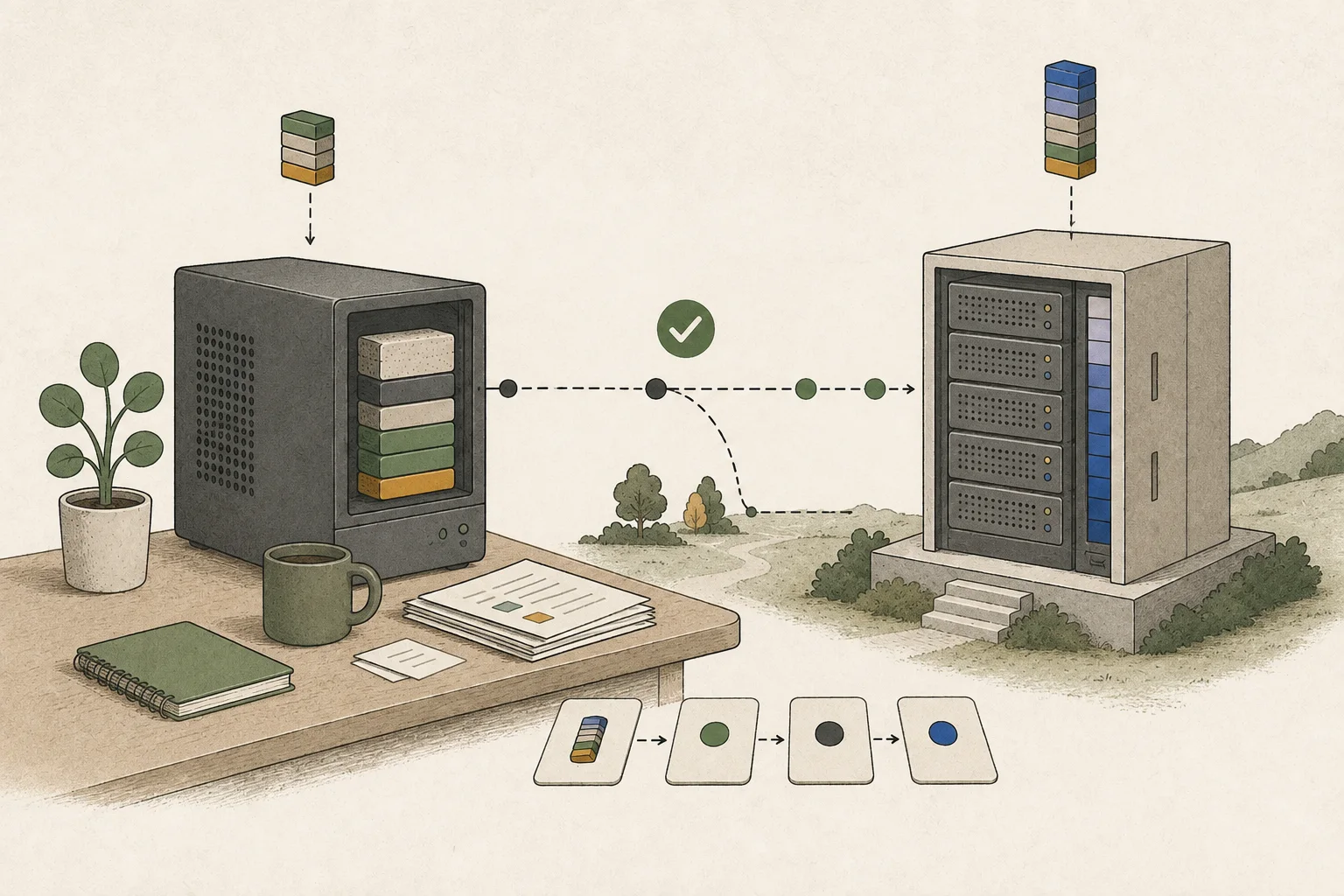
This requires an SGLang branch that includes the Gemma 4 loader. The AxionML/Gemma-4-12B-NVFP4 configuration uses NVFP412 for FFN and BF16 for attention13. Before downloading the distribution, check that the selected SGLang branch supports this format, then inspect logs for the weights actually loaded.
Terminology notes
BF16 — A 16-bit floating-point format for model values. Its exponent has the same width as FP32, giving it a similarly wide value range.
Back to the textCheckpoint — A file containing saved model weights and related state. Versions or tasks in one model family may use different checkpoints.
Back to the textAPI — A defined interface that lets other code call a program’s functions.
Back to the textGGUF — A file format for model data, widely used by llama.cpp-based tools.
Back to the textMLX — Apple’s machine-learning framework, which runs models using memory shared by the CPU and GPU on Apple Silicon.
Back to the textRuntime — The software environment that provides facilities needed while a program runs. In local AI, it can also refer to a model execution engine.
Back to the textKV cache — Memory that stores attention keys and values from earlier tokens for reuse during later token generation. Its size depends on context length and batch size.
Back to the textGPU — A processor designed to handle many calculations in parallel. It performs model computations during AI inference.
Back to the textOffloading — Moving some model data from GPU memory to system RAM or storage when capacity is limited. This adds data transfer.
Back to the textPrompt — The input text sent to a model. For generative models it describes the desired result and strongly shapes the output.
Back to the textTime to First Token — The time from sending a request until its first output token arrives.
Back to the textNVFP4 — A 4-bit floating-point data format defined by NVIDIA. Support depends on GPU generation, model, and software implementation.
Back to the textAttention — A neural-network operation that calculates relationships between input tokens and combines information from each position into the current representation.
Back to the text
Frequently asked questions
- What should you check first in this article?
- Gemma 4 12B takes text questions and generates answers; supported model and app combinations can also process image or audio input. This guide prepares a Q4 conversion for a 16–24 GB desktop or the official BF16 checkpoint for a larger NVIDIA system, then verifies a local API response.
- How much memory does it need?
- For a 16 GB system, use a GGUF or MLX Q4 conversion supported by your current app. About 7.5 GB is only the file size: after loading, the runtime, operating system, conversation KV cache, and other apps share memory. Once downloaded, confirm the actual identifier and format in the app's model list and start with a short context.
Serving recipe
Settings for your hardware
For one user
Choose your hardware to see the launch command and settings you can adjust.
Profile
Apple MacBook Pro M5 Pro (64GB)
Memory fitsRecommended runtime: LM Studio (4-bit MLX (a different format from GGUF Q4_K_M)) · Documented runtime settings
For your first run or reliable everyday use
Profile context length
16,384 tokens
A starting setup based on the runtime documentation. Follow the steps below and compare speed as you make changes.
Estimated decode speed
31.3 ~ 34.8 tok/s
Estimate for one user
Estimated TTFT
21.3 ~ 46.3 s
Prefill: 354 ~ 769 tok/s
Estimated memory use
About 9.61GB / 56GB
Remaining margin: approx. 46.4GB
Server address
http://127.0.0.1:1234
Local only · 127.0.0.1
Estimates use the calculator’s recommended quantization and acceleration with 16,384tokens. They are not measurements of the configuration above.
Settings in this profile
| Value | Why this setting |
|---|---|
| Weights4-bit MLX (a different format from GGUF Q4_K_M) | Use an MLX model directory. This is a different file format from Q4_K_M GGUF. |
| Check input length16,384 | Check both the context-length setting in lms load and the context actually loaded. |
| KV cacheCheck model settings | This launch command does not set the KV cache precision. |
| Prefill batch sizeCheck runtime settings | Do not use llama.cpp's batch-size and ubatch-size values as substitutes for MLX settings. |
| Concurrent requests1 | Measure the speed of one request, separately from the combined throughput of multiple requests. |
| Memory headroom2 GB or more | After loading the model, check actual memory use and whether the system is swapping. |
MBP M5 Pro 64GB Run command (LM Studio)
# lms ls에서 확인한 MLX 4비트 모델 식별자를 입력
MODEL_ID=""
lms ls
: "${MODEL_ID:?MLX 모델 식별자를 입력하세요}"
lms load "$MODEL_ID" --gpu=max --context-length=16384
lms server start --port 1234Checks after startup
- 01Check the startup log for completed model loading and the actual context length.
- 02After warming up, send one request at a time. Use three different inputs of the same length to record fresh-input processing time.
- 03Record repeated-input results separately as cache-reuse runs. Do not combine them with fresh-input results.
- 04Record prefill tok/s, decode tok/s and peak memory together, then change one setting at a time.
Trade-offs
- Conservative context and concurrency settings may produce less than the hardware's maximum throughput.
Adjust one item at a time
Speed tuning, step by step
If several values are changed at once, it is difficult to find the cause.
- STEP 1
Save a baseline
Record first-input and cache-reuse runs separately, three times each. Compare prefill, decode and peak memory together.
When to stop: Do not move on if there are errors or less than 2GB of memory headroom.
- STEP 2
Tune prefill chunk size
Increase in steps of 1,024 → 2,048 → 4,096, comparing TTFT and peak memory on long inputs.
When to stop: Revert to the previous value if TTFT does not improve or peak memory rises sharply.
- STEP 3
KV Cache Tuning
Only when you need more context, compare Q8 cache against the F16/BF16 baseline using the same question.
When to stop: Keep the default precision if the output changes or you already have enough context.
- STEP 4
MTP/speculative decoding
Enable it only for supported models. Test code and prose separately, measuring acceptance rates and actual decode tok/s.
When to stop: Turn it off if the median of three runs does not improve on the baseline.
- STEP 5
Context expansion
Double context length at each step until you reach what you need. Check retrieval from the middle of the input and whether swapping occurs.
When to stop: Reduce by one step if retrieval accuracy drops or swapping or memory compression starts.
Submit a measurement from my hardware
Import a JSON file with at least three runs under the same conditions. The file stays in this browser until you submit it.
Include only hardware, model, runtime settings and measurements. Do not include prompts, responses, raw logs or file paths.
If you do not have a measurement file, use the tool with your running local server. It requires Node.js 20 or later and does not upload results automatically.
These are reviewed community submissions, not measurements made by this site.
Report a setup issue
Tell us where this setup failed. Only the site administrator can read your report.
Setup being reported · MBP M5 Pro 64GB · Gemma 4 12B · Balanced
Change log
These entries record changes to the site's guidance. They do not automatically check your installed engine or model version.
Corrected model formats and runtime settings for Mac
Separated the Mac MLX path from GGUF Q4_K_M and aligned the engine name, model format and command. KV-cache precision and prefill batching that the command does not specify are now marked for checking in the model or runtime settings.
Also removed MLX speed profiles that implied a larger batch despite leaving the command unchanged.
Separated uncached-input and cache-reuse records
Updated the checks to record first-time inputs separately from repeated inputs. Cache effects are not folded into uncached prefill throughput or hardware differences.
Added saving and reopening hardware profiles
Runnable profiles can now be saved with their hardware selection in this browser, up to five entries, and reopened from the guide directory. A notice prompts you to recheck before running if the published settings have changed or the profile is no longer available.
Added links to runtime explanations
Engine names in the settings now link to the corresponding runtime guide. Paths without an identified engine are not linked to a guessed program.