
Purchases and Costs
GPU power limits for local AI: RTX 3090, 4090, 5090 and DGX Spark
Keep your memory capacity while finding a lower-power setting.
A power limit sets the maximum power a graphics card may use—for example, running an RTX 3090 at 300W instead of 350W. It preserves the VRAM1 available to your model while reducing power and heat. The trade-off can be slower responses, so compare how much longer your usual work takes.
300W is not a universal answer. Published 3090 and 5090 sweeps favored different limits, and MTP2 made the same 5090 more sensitive to a lower cap. DGX Spark and Mac use different controls altogether. Choose the method for your hardware first, then test it with a record of the original settings.
Why a lower cap can leave response speed nearly unchanged
Prefill3 processes many calculations together as the model reads your input. Decode4 repeatedly reads model data and produces the next token5. If memory traffic limits decode, a modest reduction in compute clock may have little effect on its overall speed.
MTP adds calculations that verify several candidate tokens. That can make the same model more sensitive to a power cap. After lowering the limit, test both a short question and a long-document summary. Record time to the first response separately from time to completion to see which work slowed down.
RTX 3090: most decode speed remained at 300W
In this published Qwen3.8 27B test, the power cap changed on the same RTX 3090. Reducing it from 350W to 300W cut decode speed by about 5% and measured GPU6 power by about 14%. At 275W, speed fell about 10% and power about 21%. At 250W, the speed loss grew to about 26%.
In this configuration, 300W offered a compromise between response speed and power savings, while 275W had the best tokens-per-second-per-watt ratio. Prepare your model and document, compare 300W first, and try 275W if the added wait is acceptable.
| Power cap | Generation | Measured GPU power |
|---|---|---|
| 350W | 68.9 tok/s | 347.7W |
| 300W | 65.3 tok/s | 298.7W |
| 275W | 62.3 tok/s | 274.0W |
| 250W | 51.0 tok/s | 249.5W |
RTX 3090 · Qwen3.8 27B · MTP n-max 3
350W
- Generation
- 68.9 tok/s
- Measured GPU power
- 347.7W
300W
- Generation
- 65.3 tok/s
- Measured GPU power
- 298.7W
275W
- Generation
- 62.3 tok/s
- Measured GPU power
- 274.0W
250W
- Generation
- 51.0 tok/s
- Measured GPU power
- 249.5W
RTX 3090 · Qwen3.8-27B UD-Q4_K_XL Dynamic 3.0
llama.cpp b10829 · CUDA 13.3 · NVIDIA 610.43.03
131,072 context capacity · Q4_0 KV · MTP n-max 3
thinking off · parallel 1 · median of 3 complete passes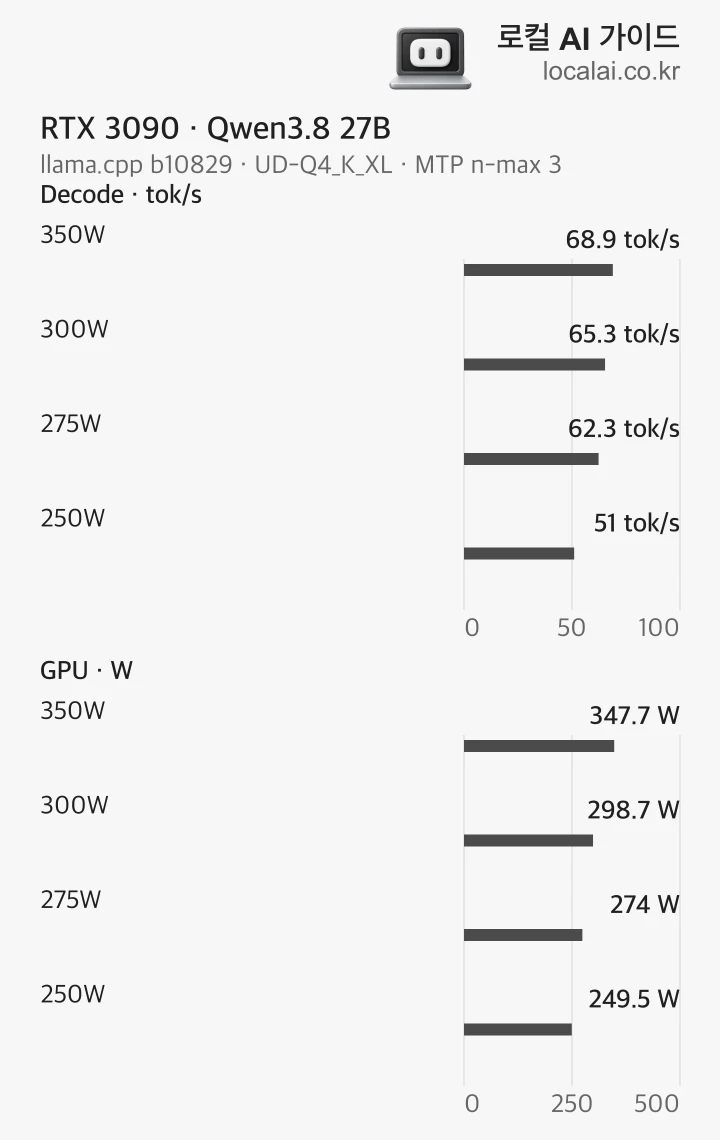
RTX 5090: recheck the trade-off when MTP is enabled
In a published RTX 5090 Qwen3.8 27B sweep, decode without MTP was nearly unchanged when the cap fell from 600W to 500W. With MTP n-max 4, it dropped from 162.1 to 153.6 tok/s, about 5%. Settings that add more compute can therefore incur a larger wait on the same card.
At 400W, speed fell about 5% without MTP and about 18% with it. A lower limit favors energy savings; start near 500W if avoiding a large latency increase matters more. The tested ASUS TUF 5090 had a 600W default. Check your own card’s default and allowed range first.
| Power cap | MTP off | MTP n-max 4 |
|---|---|---|
| 600W | 74.8 tok/s | 162.1 tok/s |
| 550W | 74.8 tok/s | 158.8 tok/s |
| 500W | 74.5 tok/s | 153.6 tok/s |
| 450W | 73.5 tok/s | 142.7 tok/s |
| 400W | 71.2 tok/s | 132.8 tok/s |
Same RTX 5090 · Qwen3.8 27B · with and without MTP
600W
- MTP off
- 74.8 tok/s
- MTP n-max 4
- 162.1 tok/s
550W
- MTP off
- 74.8 tok/s
- MTP n-max 4
- 158.8 tok/s
500W
- MTP off
- 74.5 tok/s
- MTP n-max 4
- 153.6 tok/s
450W
- MTP off
- 73.5 tok/s
- MTP n-max 4
- 142.7 tok/s
400W
- MTP off
- 71.2 tok/s
- MTP n-max 4
- 132.8 tok/s
ASUS TUF RTX 5090 32GB · Unsloth UD-Q4_K_XL
llama.cpp b10451 (10bf611e5) · Arch Linux 7.1.8 / CUDA
131K context capacity · q4_0 KV · parallel 1
thinking off · max output 400 · mean of 27 runs per cell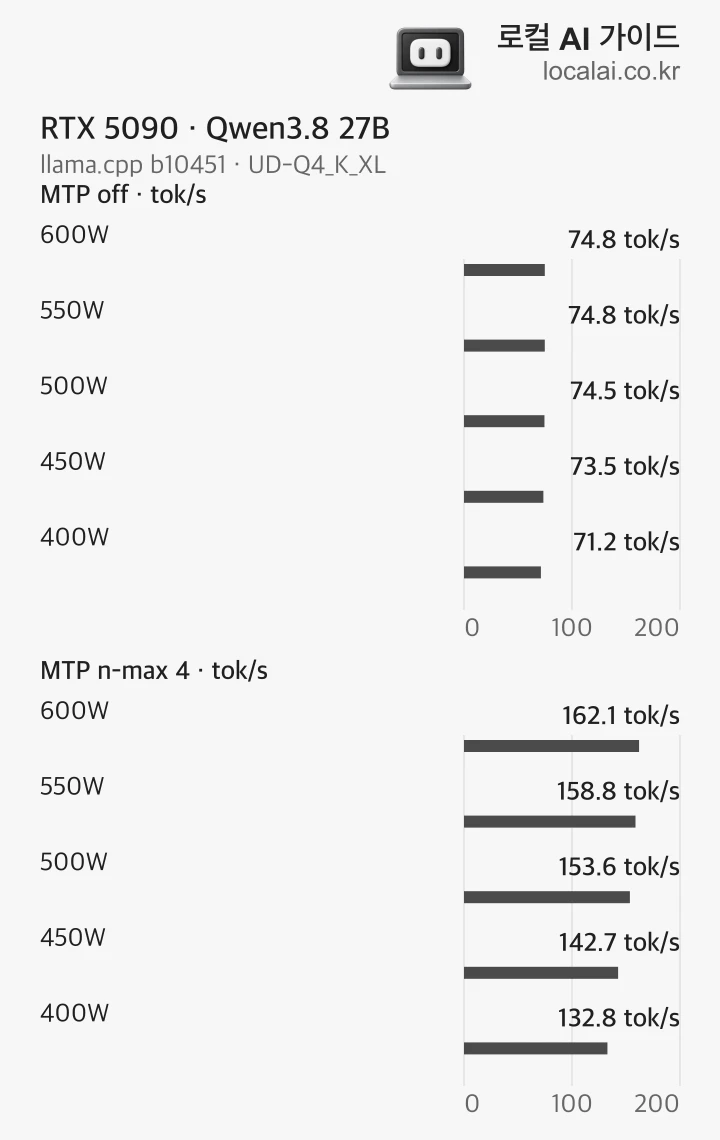
Where to start with RTX 4090, 5060 Ti and RTX PRO 6000
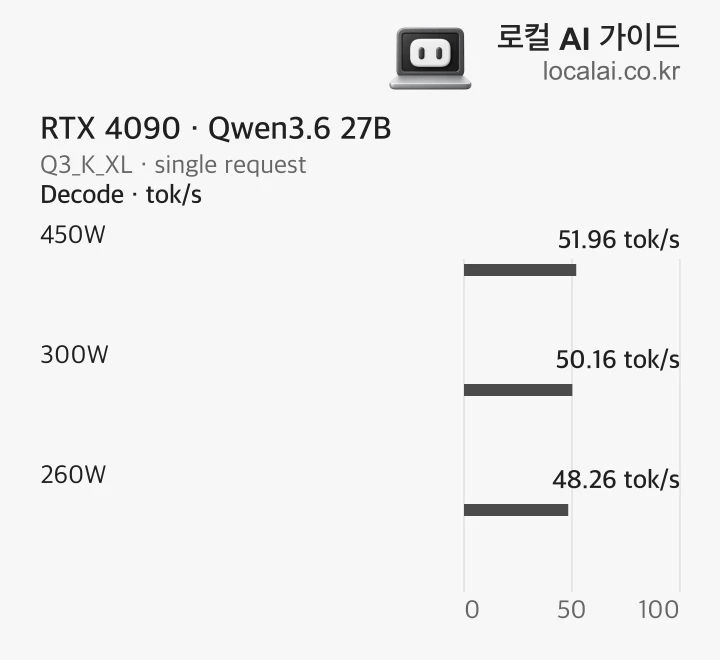
A separate RTX 4090 test using Qwen3.6 27B Q3_K_XL reported single-request decode at 51.96 tok/s at 450W, 50.16 at 300W, and 48.26 at 260W. This workload retained about 97% of its speed at 300W. Its model, file and test differ from the 3090 and 5090 tables, so use it to compare caps within this 4090 test.
Other GeForce cards, including the RTX 5060 Ti, can use the same testing procedure when their controls support it. Start roughly 10% below the default and compare first-response and completion times. If insufficient VRAM has pushed part of the model to the CPU7, inspect model placement first; a power cap does not add memory.
Identify the RTX PRO 6000 Blackwell edition first: Workstation Edition is rated at 600W, Max-Q at 300W, and Server Edition at 400–600W. Do not treat all editions as one 600W card. Lower the queried default within its Min/Max range and test long inputs and concurrent requests too. Keep the system-provided cooling required by server cards.
Windows: record the original value, then change only Power Limit
Install MSI Afterburner from its official site and select the card. Save a screenshot of its current Power Limit. If it was 100%, lower it to around 90% and click Apply. Leave voltage, core clock and memory clock unchanged so you can identify what caused any speed difference.
Complete an answer to the same document, then compare the wait and fan noise. On a card whose 100% default is 350W, 90% is approximately 315W. You need the default to translate a percentage into watts. If the slider is locked, check card and driver support. To restore, enter the recorded value and click Apply. Keep startup auto-apply disabled during testing.
Linux: query, change, verify, restore
On a PC with an NVIDIA driver, nvidia-smi can control supported cards. Identify the GPU index and name, then record its current limit and Min/Max values. The first two commands below only read settings. If the limit is N/A or changing it is unsupported, stop before the change step.
The change example lowers an RTX 3090 at GPU index 0 to 300W. Run it only if 300W is within your card’s allowed range. Query again to verify the applied limit, then compare your work. Restore the wattage you recorded before the change. Test normal operation and restoration before considering a startup service.
nvidia-smi -L
nvidia-smi -i 0 -q -d POWERsudo nvidia-smi -i 0 -pl 300
nvidia-smi -i 0 -q -d POWERsudo nvidia-smi -i 0 -pl ORIGINAL_WATTS
nvidia-smi -i 0 -q -d POWERDGX Spark: start with the controls it supports
DGX Spark’s GB10 combines CPU and GPU. Its SoC TDP is 140W, and the supplied adapter is 240W. The power reported by nvidia-smi covers the GPU portion, so measure the complete system at the wall when calculating electricity costs.
Published Spark reports currently show that nvidia-smi -pl power-limit changes are unsupported. If its power-limit fields are N/A, do not transplant the 3090’s 300W command. Start by updating DGX OS and using the supplied adapter. OS updates improved power handling for unused high-speed networking; stopping unused server work also avoids unnecessary load.
A community report lowered the clock ceiling to reduce heat and abrupt shutdowns. In that configuration, restricting GPU clocks to 300–2,200MHz changed the same dual-node workload from 32.3 to 30.8 tok/s, about 5%. It was not an electricity-savings measurement, and the report also examined power delivery and memory settings. If your Spark has the same symptom, collect logs and temperatures for support first; treat clock changes as a separate test after checking support and restoration.
Mac and Radeon have their own ways to reduce heat
On a supported Mac, compare Low Power Mode in System Settings under Energy or Battery. Apple documents reduced energy use and fan noise on supported models, including Mac mini and Mac Studio. Keep the model, document and output length fixed while comparing completion times with Automatic mode. If other apps also become too slow, use Automatic during active work and Low Power for lighter always-on tasks.
For Radeon, use power controls provided by the card vendor rather than NVIDIA commands. Supported AMD Software exposes power-limit controls under Performance and Tuning; save the defaults before changing them. If the control is absent or locked on a managed computer, check the system’s management policy first. As with NVIDIA, test the power cap alone before combining it with voltage changes.
For two GPUs or two Sparks, measure the complete job
When a model spans two GPUs, the cards exchange results. A large cap reduction on only one can make the other wait. Record each GPU’s index, UUID and current limit, then start with a small proportional reduction and compare end-to-end response time. If each card runs a different model, tune those workloads separately.
The same principle applies to two Sparks or several PCs. Add the energy used by every node until the distributed job finishes. If a spare node has no other work, stop its server after the job or schedule its idle and shutdown periods around actual use. Include powered networking devices and switches when they are part of the setup.
Record first response, completion time and energy
Establish a baseline by answering the same document at the original setting. Lower the limit, send the same request three times and compare medians. In apps with prompt caching, compare first requests separately from follow-up requests. Keep other requests and model downloads out of the test to isolate the power-cap effect.
Decode speed per GPU watt helps choose a setting. To determine whether the electricity bill improved, measure the whole PC’s energy until the answer finishes. Observe GPU power and temperature with the command below, and record cumulative Wh at the wall. Compare fan noise from the same position.
| Item | Record |
|---|---|
| Run configuration | Model, quantization, engine, input, output, MTP and concurrency |
| First response and completion | Seconds to the first token and to the end of the answer |
| Power and heat | Whole-system Wh, GPU power, temperature and fan noise |
Record the same workload at each setting
Run configuration
- Record
- Model, quantization, engine, input, output, MTP and concurrency
First response and completion
- Record
- Seconds to the first token and to the end of the answer
Power and heat
- Record
- Whole-system Wh, GPU power, temperature and fan noise
nvidia-smi -i 0 -q -d POWER,TEMPERATURE -l 1Include monthly electricity and summer cooling
Average watts multiplied by hours and divided by 1,000 gives kWh. Suppose whole-PC average power measured at the wall falls from 450W to 400W. Running for the same four hours a day over 30 days reduces use from 54kWh to 48kWh, a 6kWh saving.
If you instead run until the same job finishes, include its longer duration. A job that took four hours at the original setting uses 1.76kWh if it takes 4.4 hours at 400W, but 1.84kWh if it takes 4.6 hours. The original used 1.8kWh. Excessive slowdowns can therefore shrink or eliminate the energy saving.
Most electricity used by the hardware becomes heat in the room. During air-conditioned hours, cooling that extra heat uses additional electricity. Enter measured whole-system power and runtime8 in the electricity calculator and enable the cooling option. Include the home’s existing use and progressive tariff band to compare monthly costs.
| Setting | Daily energy | 30-day energy |
|---|---|---|
| 450W × 4h | 1.8kWh | 54kWh |
| 400W × 4h | 1.6kWh | 48kWh |
| 400W × 4.4h | 1.76kWh | 52.8kWh |
| 400W × 4.6h | 1.84kWh | 55.2kWh |
Fixed time versus fixed work · illustrative assumptions
450W × 4h
- Daily energy
- 1.8kWh
- 30-day energy
- 54kWh
400W × 4h
- Daily energy
- 1.6kWh
- 30-day energy
- 48kWh
400W × 4.4h
- Daily energy
- 1.76kWh
- 30-day energy
- 52.8kWh
400W × 4.6h
- Daily energy
- 1.84kWh
- 30-day energy
- 55.2kWh
Lower the limit only as far as the wait remains acceptable
Start by lowering the current cap by roughly 10% and compare the same job. If answers finish in almost the same time and noise or temperature improves, try a lower value. Step back if long inputs or MTP add too much delay. The goal is a comfortable everyday setting, not the lowest wattage.
Use the 3090, 4090 and 5090 measurements to choose a starting point, and test RTX PRO, Spark and Mac through their own supported controls. If your model and memory already meet the workload, try these settings to reduce heat and energy before replacing hardware.
Terminology notes
VRAM — Memory used by a graphics card’s GPU to store model weights and intermediate values.
Back to the textMTP — A training objective or model component for predicting multiple future tokens at once. In speculative decoding, those predictions can be proposed as candidate tokens.
Back to the textPrefill — The stage where an LLM reads the input prompt and computes representations for its tokens. Longer prompts contain more tokens to process.
Back to the textDecode — For an LLM, this is the stage that generates output tokens after input processing. For a VAE or audio codec, decoding can mean reconstructing the original form from a compressed representation or encoded data.
Back to the textToken — A unit into which a model divides input or output for processing.
Back to the textGPU — A processor designed to handle many calculations in parallel. It performs model computations during AI inference.
Back to the textCPU — The central processor that runs the operating system and general-purpose instructions; in AI workloads it also handles tasks such as preprocessing and data movement.
Back to the textRuntime — The software environment that provides facilities needed while a program runs. In local AI, it can also refer to a model execution engine.
Back to the text