
Model setup recipes
Last updated
Build a local AI workflow with n8n and Ollama
Place a PDF in a folder and n8n can extract its text, ask Ollama to summarize it, and save the result as a file.
n8n automates file handling and model calls by connecting workflow nodes. Its self-hosted AI Starter Kit is an example Docker Compose environment for n8n and related services. On Apple Silicon Macs, Docker containers cannot directly use the GPU1, so this guide runs Ollama as a Mac app and lets n8n in Docker connect to the host. Because Ollama's port must accept network connections, restrict who can reach it.
n8n connects file handling and model requests in one workflow
n8n connects schedules, files, and web requests to processing steps in a workflow. This example reads a PDF from a shared folder, extracts its text, asks Ollama for a Korean summary, and saves the result. Inspect each step's inputs and outputs to spot where a run failed.
Create the workflow with a Manual Trigger as its first node. In the editor, click Execute Workflow to run one PDF end to end, then inspect each node's input and output and check that the summary preserves the source. Set a duplicate/retry policy before adding a Schedule Trigger.

Prepare the Docker starter kit and Ollama on the Mac
Install Docker Desktop and the Ollama app. From Ollama's model library, choose a model and run the exact ollama pull ... command shown on its page; then use ollama list to see the installed name. The official starter kit notes that Docker on Mac cannot pass the Apple GPU into the container, so n8n runs in Docker Compose while native Ollama handles inference2.
Clone the starter kit, create its environment file, and replace the documented default passwords and encryption key. When Ollama runs natively on the Mac, set OLLAMA_HOST to host.docker.internal:11434. Prepare shared/inbox, shared/output, and shared/processed, then start the project and open http://localhost:5678/ to set up n8n.
git clone https://github.com/n8n-io/self-hosted-ai-starter-kit.git n8n-ai-local
cd n8n-ai-local
cp .env.example .env
mkdir -p shared/inbox shared/output shared/processeddocker compose upOLLAMA_HOST=host.docker.internal:11434The Ollama app accepts connections only on 127.0.0.1:11434 by default. Docker needs a matching listener setting on the Mac to reach Ollama. For the macOS app, set the value from the official FAQ, launchctl setenv OLLAMA_HOST 0.0.0.0:11434, then restart the app.
This setting accepts connections on every network interface. Use the Mac firewall to restrict port 11434 to trusted local connections, and do not forward the port through a router or expose it to the internet. The Ollama API3 has no authentication by default.
launchctl setenv OLLAMA_HOST "0.0.0.0:11434"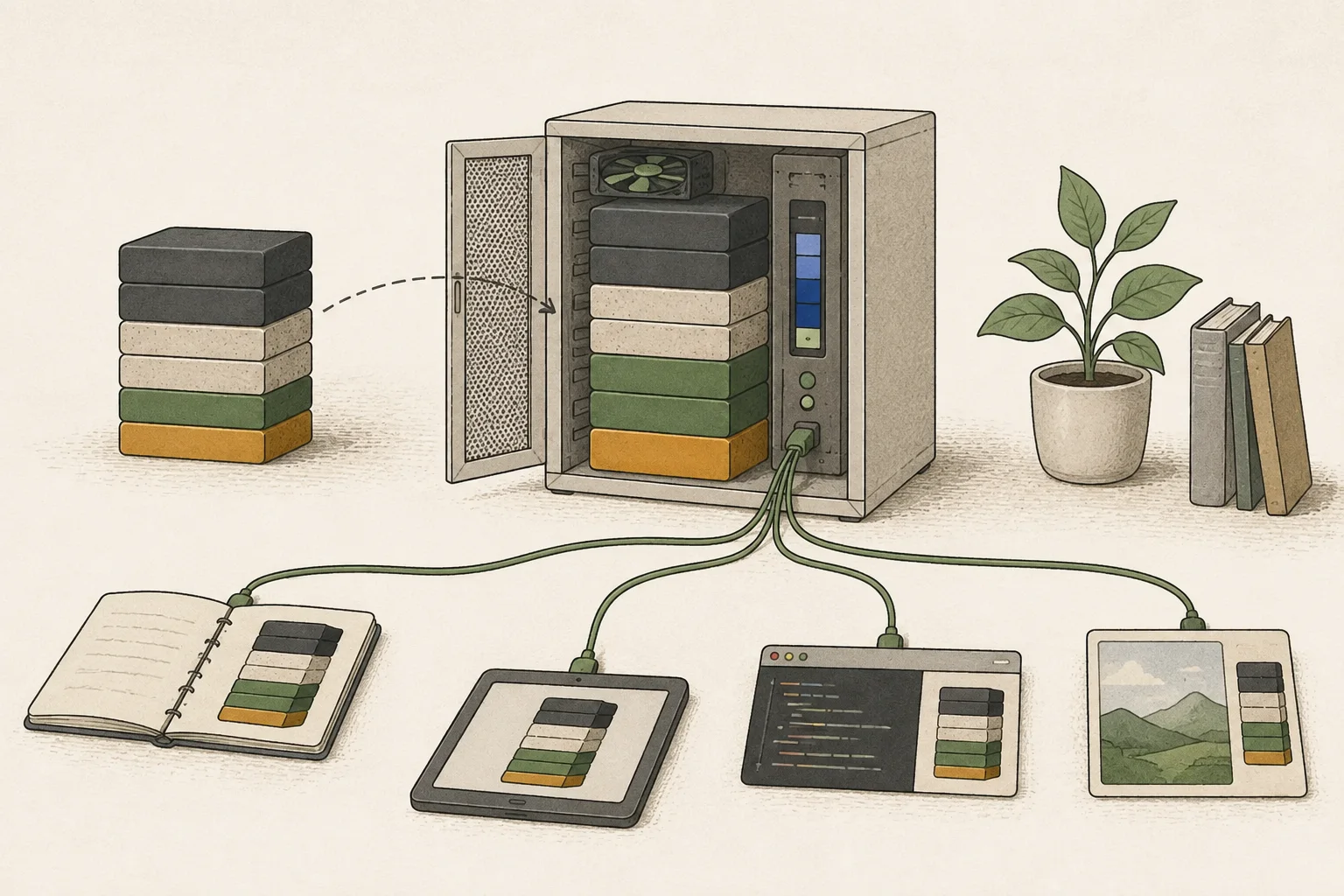
Build the PDF summary workflow one step at a time
Start with Manual Trigger. Place the PDF at n8n-ai-local/shared/inbox/brief.pdf on the host and connect Read/Write Files from Disk. Set Operation to Read File(s) From Disk, File(s) Selector to /data/shared/inbox/*.pdf, and Put Output File in Field to data. Compose mounts the host's shared at /data/shared, so the selector uses the container path.
Connect Extract From File with Operation Extract From PDF and Input Binary Field data. Its output text is in text. Add Basic LLM Chain, connect Ollama Chat Model, set its credential Base URL to http://host.docker.internal:11434/, and select the exact model name from ollama list. Put the following prompt4 in the chain's Prompt field.
문서의 핵심을 5개 항목 이내로 요약하세요. 날짜·금액·고유명사는 원문대로 유지하세요.

{{ $json.text }}
The chain output is in the text field. In Convert to File, choose Operation Convert to Text File, set Text Input Field to text, and set File Name to {{ $('Read/Write Files from Disk').item.binary.data.fileName.replace(/\.pdf$/i, '.summary.txt') }}.
In the final Read/Write Files from Disk node, choose Write File to Disk, set File Path and Name to /data/shared/output/{{ $('Read/Write Files from Disk').item.binary.data.fileName.replace(/\.pdf$/i, '.summary.txt') }}, and Input Binary Field to data.
The first output is n8n-ai-local/shared/output/brief.summary.txt on the host. Add OCR5 if extracted text is empty for a scanned PDF.
After connecting every node, click Execute Workflow in the editor. Inspect each node's inputs and outputs, then read shared/output/brief.summary.txt on the host against the original.
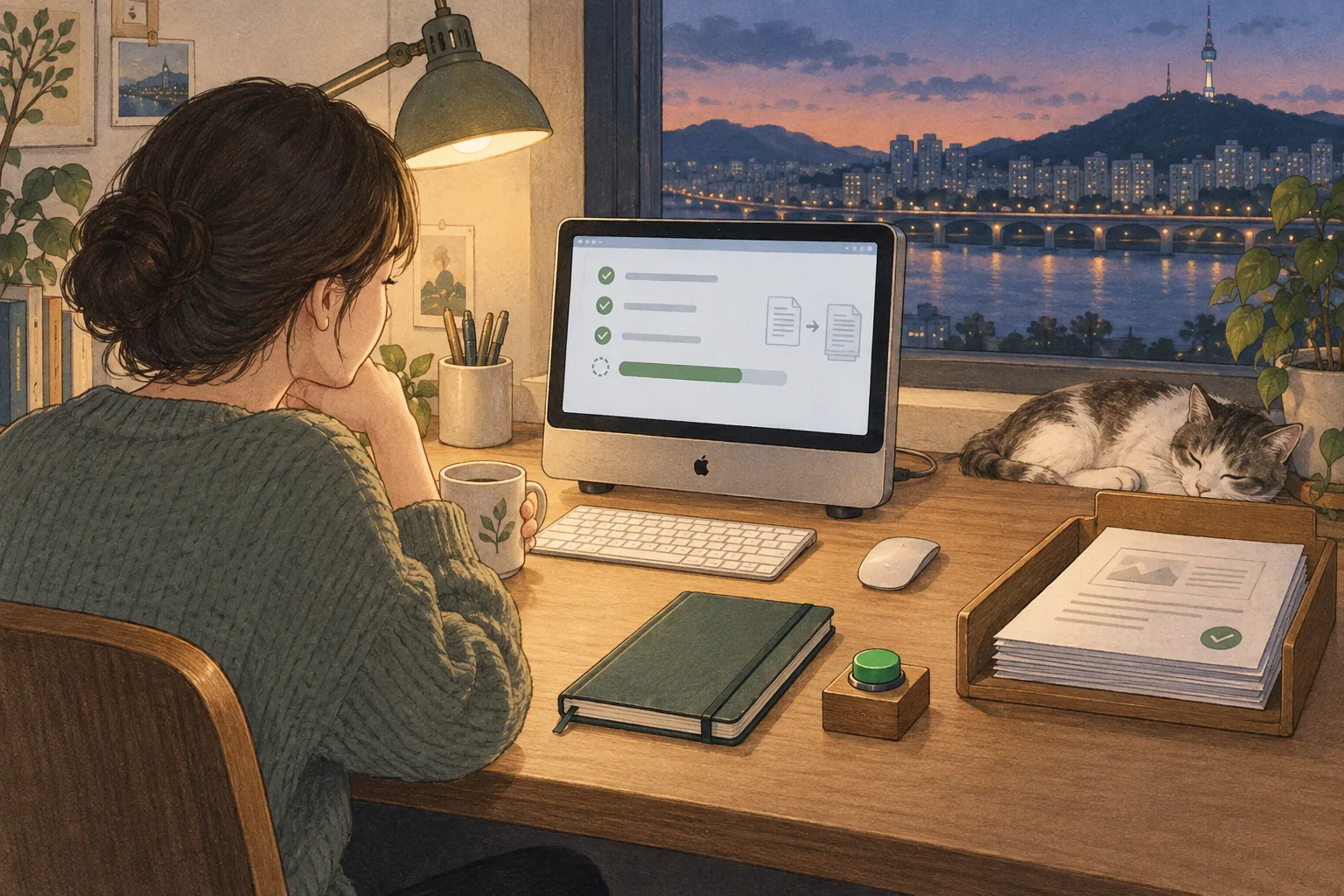
Check the summary before adding a schedule trigger
Before enabling the schedule, insert Remove Duplicates between file reading and PDF extraction. Set Operation to Remove Items Processed in Previous Executions, Keep Items Where to Value Is New, Value to Dedupe On to {{ $binary.data.fileName }}, and Scope to Node. A filename already seen is filtered out on the next execution rather than sent to the model again.
This exercise uses filenames as document IDs. Give revised documents new names such as brief-v2.pdf; rename a failed input before submitting it again. Keep an earlier summary under another name if needed. Different documents must have distinct filenames.
Run the same file twice and confirm that the second execution sends no item beyond the deduplication node. Then add Schedule Trigger, set a low frequency, and activate the workflow. Check execution logs and the output folder after the first scheduled runs.
Trace the path when the model or file step returns nothing
If the Ollama model node reports a connection error, check that Ollama is running on the Mac and that ollama list contains the model. Then verify that Credentials has http://host.docker.internal:11434/ and .env has host.docker.internal:11434. Select the exact model name shown in the list.
If a file node cannot find the path, check that you used a container path such as /data/shared/... rather than a Mac path. If Extract From File returns nothing, check whether the PDF contains selectable text. Use execution history to find whether reading, extraction, the model request, or writing failed so you can fix that step without rebuilding the whole workflow.
Terminology notes
GPU — A processor designed to handle many calculations in parallel. It performs model computations during AI inference.
Back to the textInference — The process of using a trained model to compute an output for an input. Here, local inference means running the model on the user’s device.
Back to the textAPI — A defined interface that lets other code call a program’s functions.
Back to the textPrompt — The input text sent to a model. For generative models it describes the desired result and strongly shapes the output.
Back to the textOCR — The process of recognizing characters in images or scanned documents and turning them into text. Table layout and reading order still need the original image to verify.
Back to the text
Frequently asked questions
- What should you check first in this article?
- n8n automates file handling and model calls by connecting workflow nodes. Its self-hosted AI Starter Kit is an example Docker Compose environment for n8n and related services. On Apple Silicon Macs, Docker containers cannot directly use the GPU, so this guide runs Ollama as a Mac app and lets n8n in Docker connect to the host. Because Ollama's port must accept network connections, restrict who can reach it.
- When is it better not to choose this?
- This setting accepts connections on every network interface. Use the Mac firewall to restrict port 11434 to trusted local connections, and do not forward the port through a router or expose it to the internet. The Ollama API has no authentication by default.