
Image and video generation
Last updated
Edit reference photos and guide layout with FLUX.3 Klein
Separate what changes from what stays using the prompt and reference images.
Use the original photo and edit instructions with FLUX.3 Klein Image Edit in ComfyUI to create an image. This guide explains how to direct composition with reference images and bounding boxes, then review the result.
Choose the photo and the details to preserve
FLUX.3 Image Klein uses the same model family for text-to-image and image editing. Load a source photo and an instruction into ComfyUI’s Image Edit template to create a new image reflecting the request. For a product photo, decide whether to change only the color or also the background and lighting, then identify details such as the logo and product outline that must remain. ComfyUI Image Edit guide
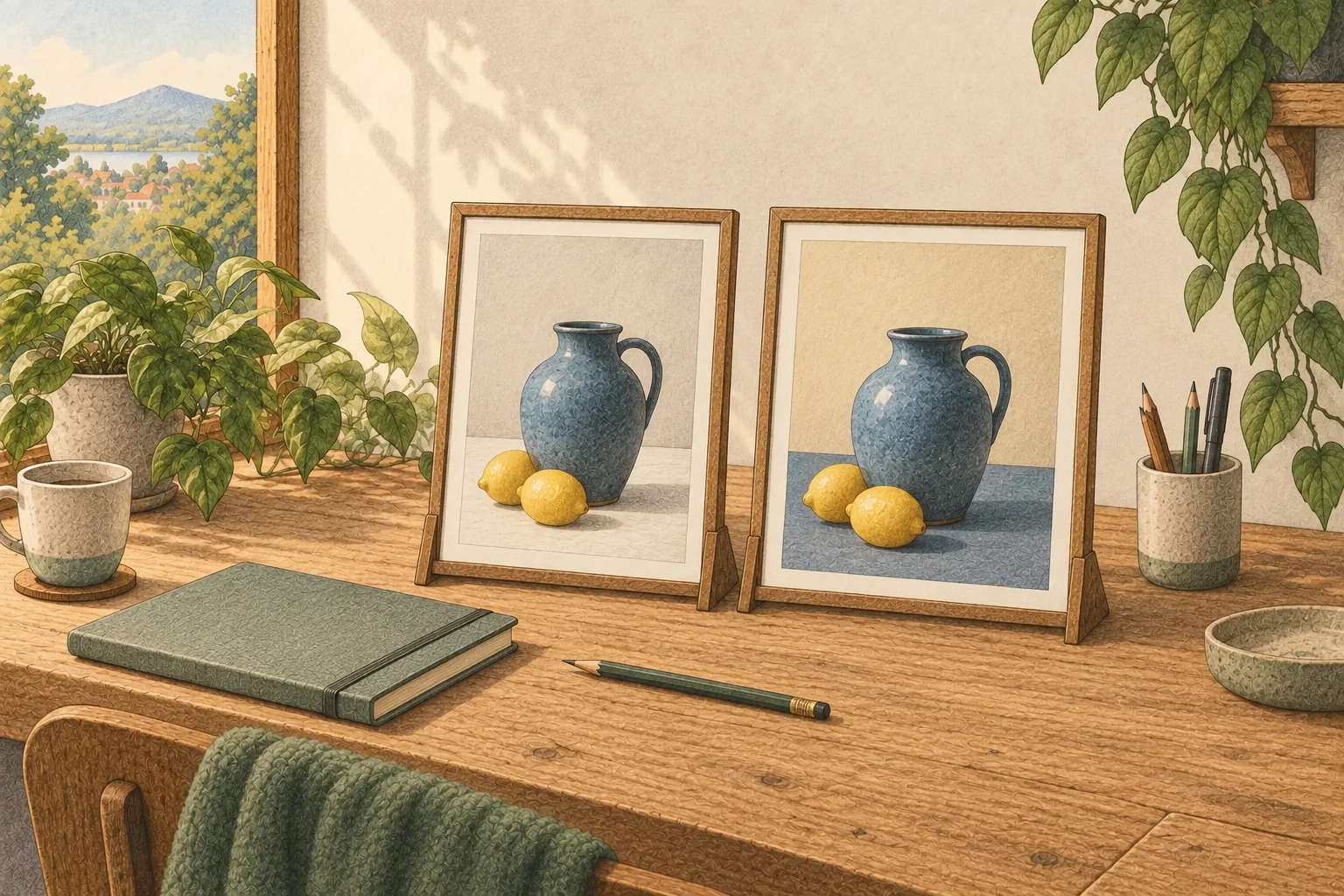
Connect the photo and describe the finished scene
In ComfyUI, open the Flux.3 Image Klein Distilled: Image Edit template and load the photo with LoadImage. Connect it to Set Reference Multi Latent, then describe the desired scene in the positive prompt1. For example: “a product photo that keeps the green glass bottle and its position on the table, while changing the background to a bright stone kitchen in morning light.” Name both what should stay and what should change.
The template resizes reference images to about one megapixel. Keeping a larger source may preserve more detail for editing, but can also use more memory. ComfyUI reference image guide
Label the order when using multiple references
FLUX.3 Klein accepts up to 10 reference images. Connect them in order to Set Reference Multi Latent in ComfyUI, then refer to each by index in the prompt, such as <ref_image_0> and <ref_image_1>. For example, ask it to use the first photo for the product shape and the second for the background colors.
Reference images guide the product shape and background. A logo or product outline may still change, so compare the saved result with the original. BFL model card

Guide composition with boxes and inspect the result
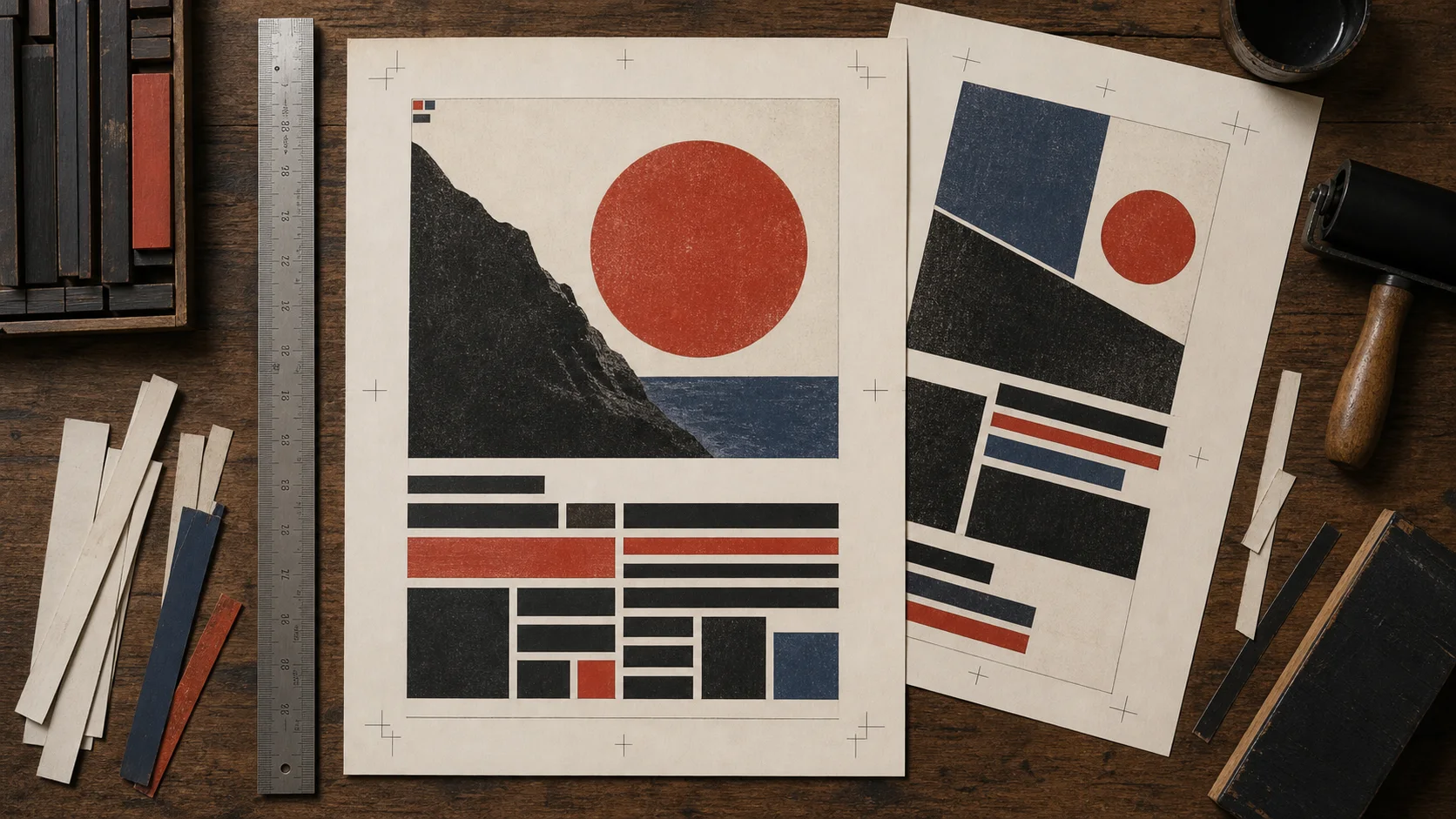
To place several elements, define regions with the template’s Create Bounding Boxes node and inspect them in Preview Any. The model-card format is [top, left, bottom, right] on a 0–1000 scale. For example, [100, 100, 300, 500] marks the top 10–30% and left 10–50% of the canvas. Boxes guide position and scale; they do not constrain pixels to a hard mask, so an element or nearby content may change outside the region. BFL bounding-box guide
Compare with the source and add final copy yourself
Save the output PNG with SaveImage, then place it beside the original at the same size. Compare the product outline, logo, shadows, and background. If you intended to change just one element, inspect the areas that should remain untouched. Small text may be distorted, so add poster titles or product labels in a design tool and proofread them. Change one condition, such as the background or lighting, at a time to see how the output responds.
Terminology notes
Prompt — The input text sent to a model. For generative models it describes the desired result and strongly shapes the output.
Back to the text
Frequently asked questions
- What should you check first in this article?
- Use the original photo and edit instructions with FLUX.3 Klein Image Edit in ComfyUI to create an image. This guide explains how to direct composition with reference images and bounding boxes, then review the result.
- Where can you check the conditions and sources?
- Reference images guide the product shape and background. A logo or product outline may still change, so compare the saved result with the original. [BFL model card](https://huggingface.co/black-forest-labs/flux-3-image-klein)