Image and video generation
Restore old footage with an RTX 5090: a local SwiftVR guide
SwiftVR restores low-quality footage; it does not create a new video scene.
If you want to revisit old 480p footage on a larger display, SwiftVR is a local model that can attempt 4× upscaling and video restoration. Its creators report about 26 FPS1 at 1080p on an RTX 5090 using BF162 and causal chunks, but that does not guarantee the completion time for every source file. This guide walks through setup, a short test clip, output checks, and recording full-job time so you can choose settings for your own footage.
Choose the footage and define what a successful restoration means
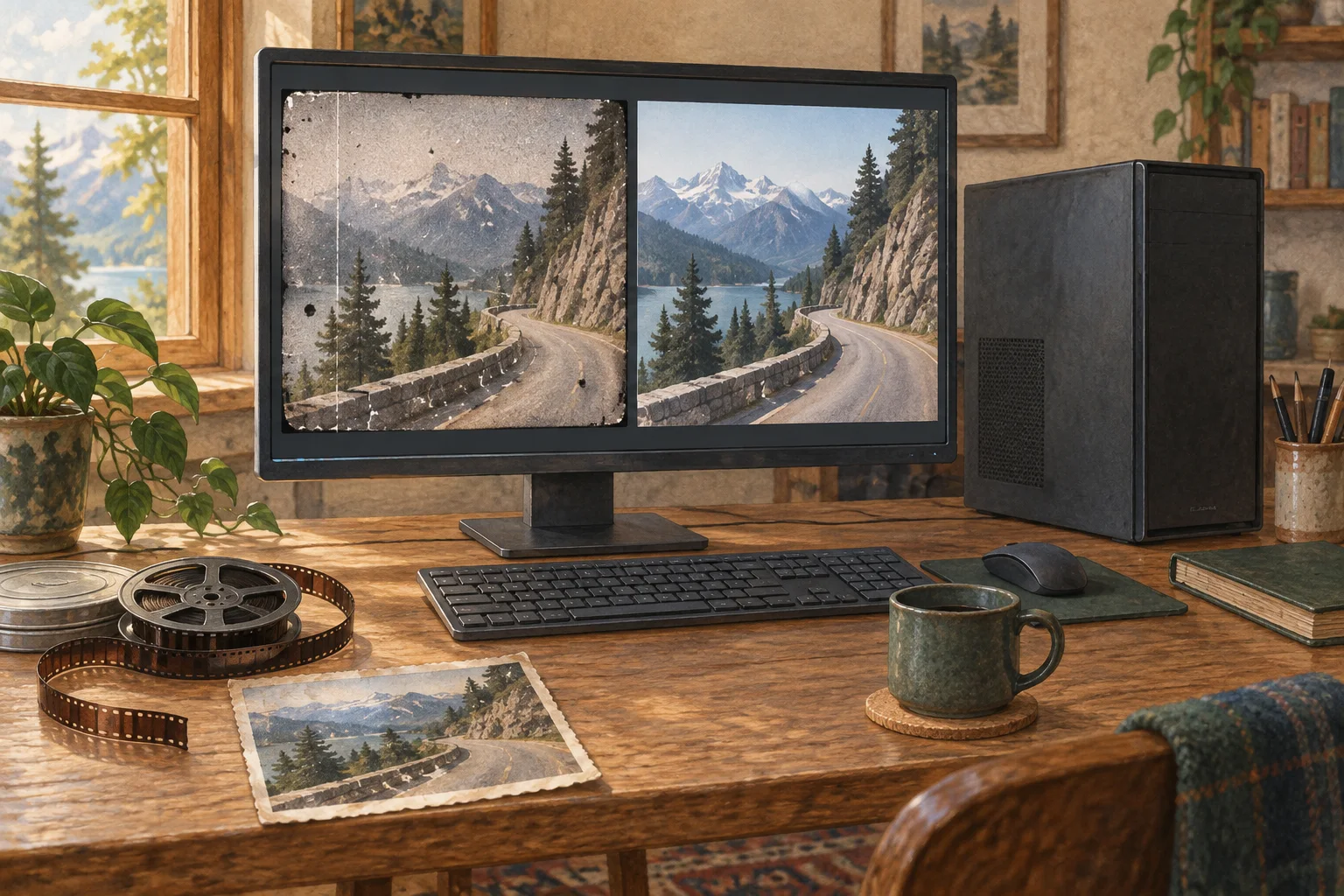
Suppose you want to revisit an old 480p travel video on a large screen. SwiftVR’s example uses `upscale=4`, multiplying the output dimensions by four. Check the source aspect ratio and pixel dimensions first so the result fits your actual display or editing format. The goal is to restore contours and texture already present—not redraw the scene. Before running it, note whether faces keep their shape, grass and building edges become less smeared, and moving objects remain stable between frames3. This keeps apparent sharpness from becoming your only measure of success.
The model card calls SwiftVR ‘Real-Time One-Step Generative Video Restoration.’ Released in June 2026 and based on Wan2.2-TI2V-5B, it restores low-quality input in this workflow; despite ‘generative’ in the title, it is not a prompt-to-new-video recipe. If you have no source footage or want to change the scene content, choose a video-generation model instead.
Record the source frame rate, resolution, and duration. If the player resizes one version automatically or skips frames, what you see may not reflect the model alone. Compare the same segment at the same display size, checking both selected still frames and motion to judge detail preservation separately from temporal stability.
What conditions apply to the published RTX 5090 result?
SwiftVR’s creators report about 26 FPS at 1080p on one RTX 5090. The model card specifies BF16, the default PyTorch4 SDPA path, and causal chunking, without hardware-specific retraining or kernel replacement. This is a frame-processing rate, not a promise that a 30-second video will finish in a specific number of seconds: reading, decoding5, chunk buffering, encoding, and writing the output all add time.
A separate model-card result uses one H100 at 2560×1440 with causal streaming and 24 frames: 0.766 seconds on average, 31.32 FPS, and 38.01 GB peak memory. This is not an RTX 5090 result. The card separately reports about 14 FPS at 4K on an H100. Since both GPU6 and resolution differ, these figures cannot predict QHD or 4K speed on a 5090.
LightX2V supports SwiftVR through a separate runtime7. Its repository reports 1.91× faster requests and 65.71% lower peak GPU memory on a single H100; the comparison is also H100-based. Multiplying that factor by the RTX 5090 result would invent an unmeasured number. First establish a working baseline with the official SwiftVR path. If you switch to LightX2V, measure again on the same 5090 with the same input and output resolution.
| Reported result | GPU and settings | How to interpret it |
|---|---|---|
| ~26 FPS, 1080p | RTX 5090, BF16, default SDPA, causal chunks | Model-card result on a consumer GPU |
| 31.32 FPS, QHD, 24 frames | Single H100, causal streaming | Separate H100 benchmark |
| ~14 FPS, 4K | Single H100 | H100 result at 4K |
| 1.91×, 65.71% lower memory | LightX2V measurement on one H100 | Do not apply to estimate 5090 performance |
Published results from different hardware and resolutions are not directly comparable as a ranking.
~26 FPS, 1080p
- GPU and settings
- RTX 5090, BF16, default SDPA, causal chunks
- How to interpret it
- Model-card result on a consumer GPU
31.32 FPS, QHD, 24 frames
- GPU and settings
- Single H100, causal streaming
- How to interpret it
- Separate H100 benchmark
~14 FPS, 4K
- GPU and settings
- Single H100
- How to interpret it
- H100 result at 4K
1.91×, 65.71% lower memory
- GPU and settings
- LightX2V measurement on one H100
- How to interpret it
- Do not apply to estimate 5090 performance

Install the official path and save a short test from start to finish
SwiftVR’s repository example installs PyTorch 2.10.0 and torchvision 0.25.0 from CUDA8 12.4 wheels, but do not copy that combination onto an RTX 5090. For Blackwell (sm_120), install the same version pair from the official PyTorch CUDA 12.8 wheel index and ensure your NVIDIA driver supports it. CUDA wheels include a user-space runtime; that is separate from installing the local CUDA Toolkit. The model weights and inference9 code are released under Apache-2.0.
Create an isolated environment, install SwiftVR, and download weights from the `H-oliday/SwiftVR` model ID. The checkpoint10 directory needs the ReAE weights, empty-prompt embeddings, and Diffusers-format transformer11 files. Verify that `torch.version.cuda` reports 12.8 and that the RTX 5090 capability is `(12, 0)`. If you see `no kernel image is available` or `sm_120 is not compatible`, first check whether the active Python is importing Torch from another environment and whether the installed wheel includes Blackwell support. If model loading says a file is missing, inspect the three checkpoint components directly under the directory passed to `--checkpoint`.
git clone https://github.com/H-oliday/SwiftVR.git
cd SwiftVR
conda create -n swiftvr python=3.10 -y
conda activate swiftvr
python -m pip install torch==2.10.0 torchvision==0.25.0 --index-url https://download.pytorch.org/whl/cu128
python -m pip install -e .
python -c "import torch; print(torch.__version__, torch.version.cuda, torch.cuda.is_available()); print(torch.cuda.get_device_name(0), torch.cuda.get_device_capability(0)) if torch.cuda.is_available() else None"
huggingface-cli download H-oliday/SwiftVR --local-dir checkpoints/python scripts/inference.py \
--input sample_short.mp4 \
--output restored_short.mp4 \
--checkpoint checkpoints/ \
--upscale 4 \
--clip-len 24 \
--dtype bfloat16Inspect restored frames and the finished file separately
When the short test finishes, open the source and result at the same player size and check your criteria. Do not accept a changed face outline or newly invented background pattern just because it looks sharper. For important footage, compare matching source/restored frames side by side, focusing on recognizable details such as faces, text, and straight edges. Generative restoration can plausibly fill in details, so new texture should not be treated as recovered factual information.
`clip_len` is the number of frames grouped along time; the repository example uses 24. Changing it can affect memory use and chunk boundaries, so do not change several options at once. First confirm the default run produces a complete file, then change only the chunk length. If the result is empty (for example, `None`) or the ending is missing, inspect logs and file duration for processing errors and check whether the final input buffer was consumed.
FPS answers how quickly frames are processed; it does not include startup or encoding and writing the final file. Nor does a 30-second source imply a 30-second run. Record the source duration, start/end time, GPU, output resolution, `clip_len`, precision, and FPS so you can reproduce the run.

When can you use the 5090 result as a reference for your footage?
If you have an RTX 5090 and want 1080p restoration, the creators’ roughly 26 FPS is a starting point for judging feasibility. It does not mean your file will run at the same rate: after a short successful test, process the whole file once and measure completion time. Duration, codec12, storage, and preprocessing can change total runtime even when the frame rate is similar.
If you do not have a 5090, do not apply the H100’s 31 FPS or 4K result directly. Restoration processes more pixels per frame as output resolution rises. Set your target size and use a completed run at that size—ideally on your own hardware—as the decision point. If it runs but takes too long, separate frame rate from full-job time on a short clip and see whether a lower resolution or chunk length still meets your needs before buying hardware.
If you need a new scene, character motion, or camera movement, SwiftVR is not the tool for that job. The takeaway is not that an RTX 5090 can do every video-AI task; it is that the creators published a 1080p result for a specific restoration task, which you can test against your own footage. Batch-process existing videos only after the short test preserves the details you need and the full-file time fits your schedule.
Original model and execution documentation
Consult the original sources below for installation and model usage requirements.
Terminology notes
FPS — Frames per second. It describes a video’s temporal sampling rate and is not the same as generation speed or image quality.
Back to the textBF16 — A 16-bit floating-point format for storing and computing model values. Support depends on the hardware and runtime.
Back to the textFrame — A single image that makes up part of a video. Frame rate and frame resolution are separate properties.
Back to the textPyTorch — A software framework for building and running AI models. Check the compatible PyTorch version and hardware support along with the model.
Back to the textDecode — For an LLM, this is the stage that generates output tokens after input processing. For a VAE or audio codec, decoding can mean reconstructing the original form from a compressed representation or encoded data.
Back to the textGPU — A processor designed to handle many calculations in parallel. It performs model computations during AI inference.
Back to the textRuntime — The software environment that provides facilities needed while a program runs. In local AI it can also refer to a model execution engine; a GPU runtime library and a complete serving app are different components.
Back to the textCUDA — A software platform for general-purpose computing on NVIDIA GPUs. Programs built for CUDA are not guaranteed to run unchanged on other GPUs.
Back to the textInference — The process of using a trained model to compute an output for an input. Here, local inference means running the model on the user’s device.
Back to the textCheckpoint — A file containing saved model weights and related state. Versions or tasks in one model family may use different checkpoints.
Back to the textTransformer — A neural-network architecture centered on attention, which computes relationships within an input. It is used in language as well as image, audio, and video models.
Back to the textAudio codec — A method or software for encoding, compressing, and decoding digital audio. Size, compatibility, and lossiness vary by codec.
Back to the text