
Image and video generation
Last updated
Local video generation: workflows and PC requirements
Animate a still photo into a short local video
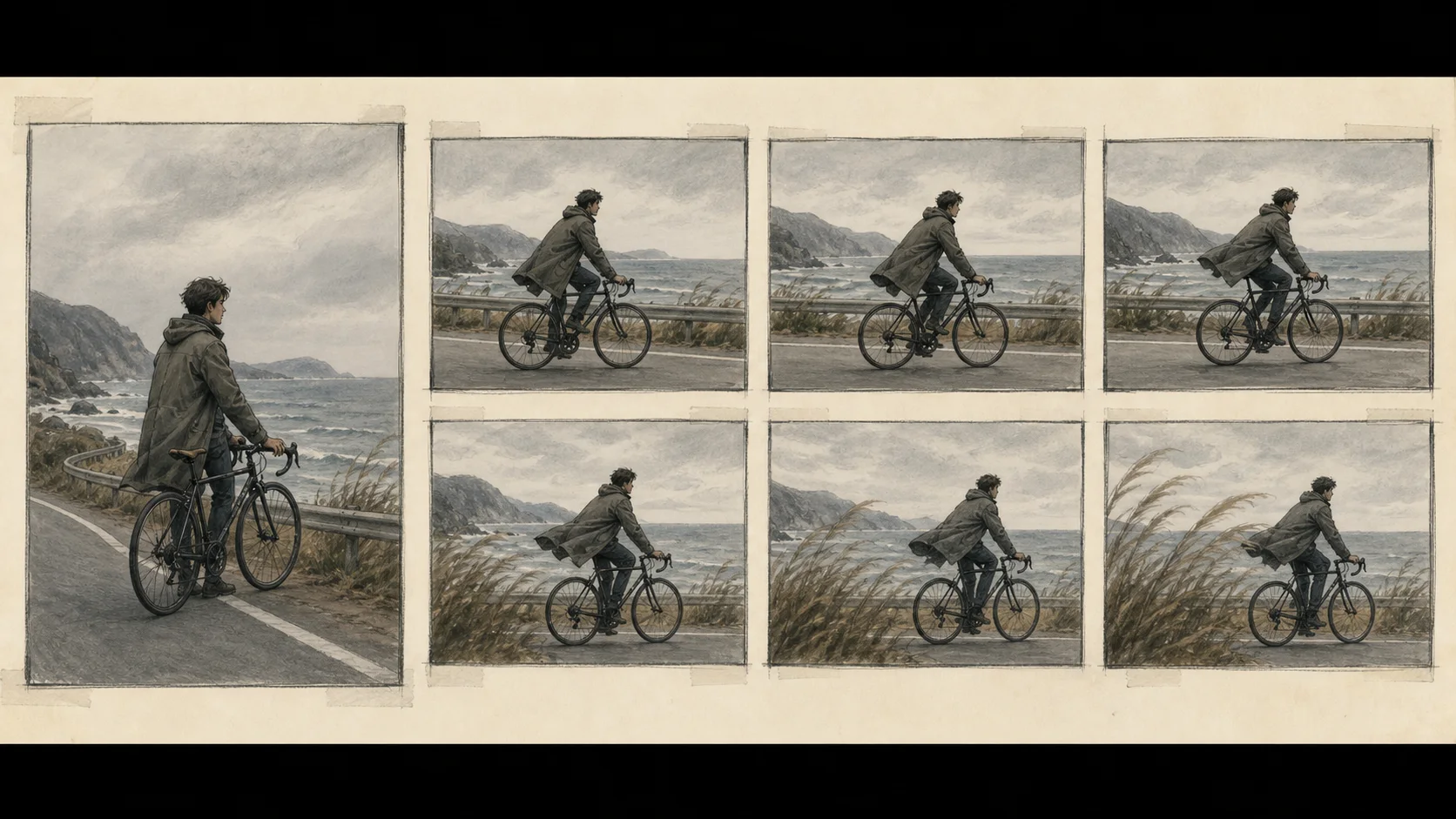
A local image-to-video model takes a still image and motion instructions, computes frames1 over time, and saves a playable video. The photo provides the opening composition and subject, but you need to play the finished clip to check whether their shape remains consistent.
Suppose you want a five-second shot from a small glass-bottle product photo, with only a slow camera push-in. If the bottle rotates and the lighting and background also change, it is harder to identify why the result differs. Defining the subject and one motion first makes success easier to judge. Image-to-video starts from a supplied composition, while text-to-video creates the opening scene from scratch.
Separate playback duration from generation waiting time
A five-second video describes its playback duration. The generator reads the input image, computes the scene over time, and saves a video file, so generation time must be measured separately.
For example, a five-second output at 24 fps2 contains 24×5=120 displayed frames. This count comes from the frame rate and playback duration; it does not mean the model generates 120 independent images.
At fixed duration, changing frame rate changes displayed frame count; at fixed frame count, changing frame rate changes playback duration. Adding intermediate frames with post-generation interpolation does not proportionally increase the number computed by the original generator. Do not compare generation times across different output conditions as if equivalent; record the actual generated duration and editing time separately.
- Choose a Wan, Hunyuan, or MiniMax runtime path
- Local image generation: software, hardware and your first image
- LTX Retake and Dub-It guide: choose interval editing or dialogue changes
- Restore old footage with an RTX 5090: a local SwiftVR guide
- Run Pruna-Qwen-Image-2.1 locally: choosing its 5- or 8-step adapter
GPU memory also needs workspace beyond model weights
After model loading, the input image, temporal intermediate representations, output dimensions, text encoder, and VAE3 can all use runtime4 memory. A checkpoint5 fitting on disk or loading onto the GPU6 does not ensure enough memory for frame computation. Even on the same GPU, precision, resolution, frame count, and concurrent workloads change which settings fit.
Offloading7 can reduce GPU pressure by keeping some data in system memory or storage, but data transfers take time and host memory is needed. Multi-GPU execution also requires the model and runtime to support sharding; adding card capacities does not predict compatibility or speed. Test with your usual editor and browser open during generation, and record open apps and peak memory.

Review motion through the middle and end of the clip
Play the saved clip from beginning to end. Check whether the bottle's shoulders and label stay consistent, the camera and background move naturally, and motion remains continuous. Playback can reveal flicker missed in still frames. Distinguish perspective changes as the camera approaches from distortions of the subject itself to identify what needs fixing.
If the shape changes midway, try reducing the requested motion or using a simpler source image before increasing resolution. In the bottle example, if the label flickers, keep settings fixed and reduce only the camera movement for a second candidate. Save prompt8, model, settings, and seed; changing one condition at a time makes comparison clearer.
Increase resolution and duration after testing a short clip
Rather than starting with a long clip or large resolution, use a short, small setting supported by the model and check continuity of the bottle outline and camera motion. Increasing duration at the same frame rate adds more temporal span; increasing resolution adds more pixels to process at each point. Workspace and compute vary by settings, so file size alone cannot predict them.
When the short preview preserves the shape, increase to the target resolution and duration and review again. Frame limits differ by model, so do not copy values unchanged from another model; record any changes to source image, prompt, dimensions, and duration.
Check audio and editing separately from video output
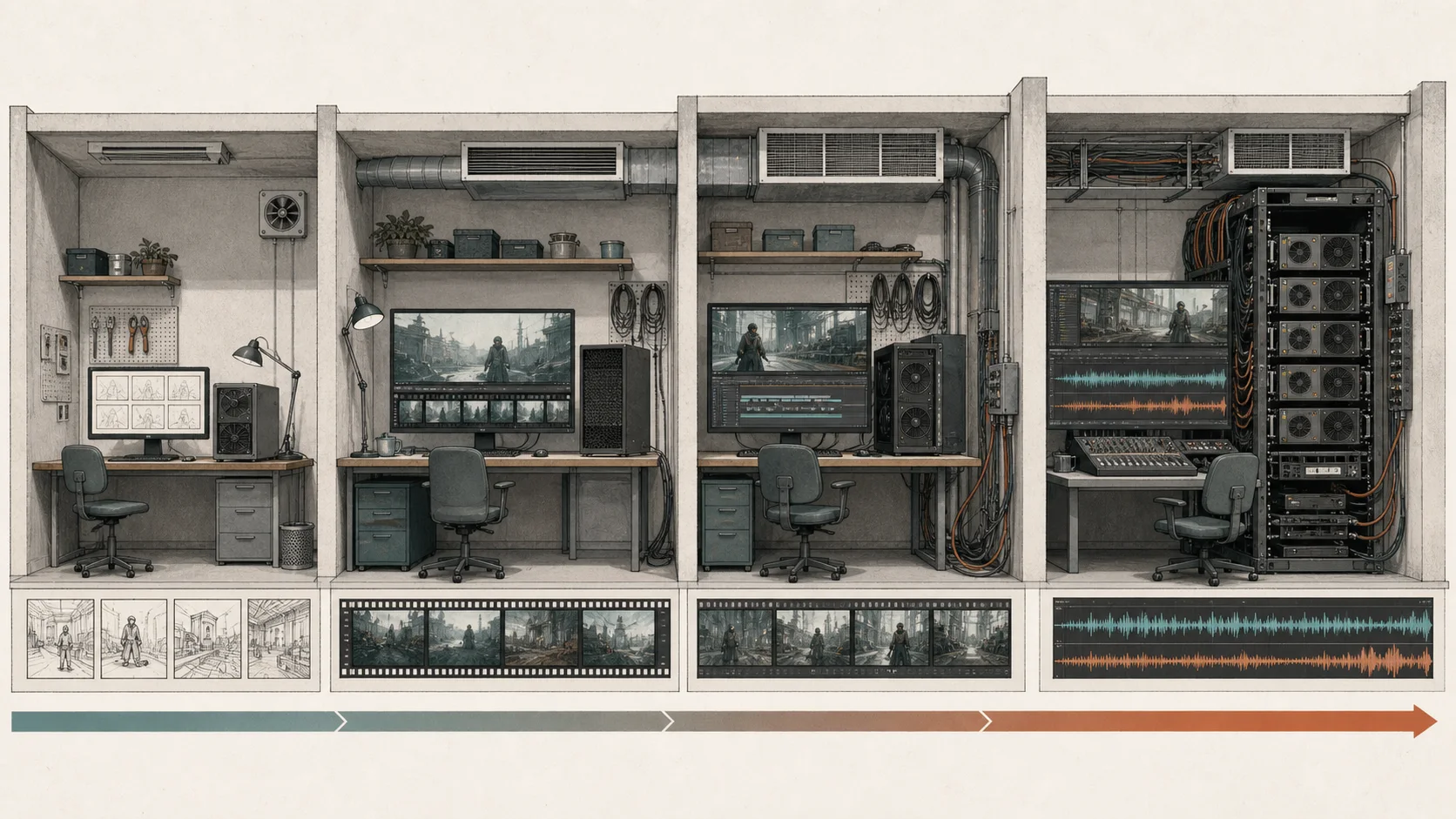
Check whether the video model also generates audio. Even when supported, listen separately for synchronization with motion and unwanted speech. You can instead make a silent video and add music or effects in an editor. Choose based on whether all-in-one audio/video is convenient or whether you need to adjust tracks separately later.
When joining clips, align cut points, color, and volume in editing. Post-production is not included in the model’s file-generation time, so assess the full delivery workflow separately.
Distinguish the site’s sample playback from local generation
After the estimated wait, the site demo shows a prepared video sample. To check a real result, generate a short video through a path that supports your input image, target length, and resolution, then play it through to the end.
If your current hardware has enough workspace, produces acceptable motion, and repeated waiting is manageable, start with that setup. If runs require clearing memory or frequently stall, use measurements to decide whether more memory or another supported path is needed. Animating an occasional photo and producing many clips every day require different throughput9.
Choose a video model by generation or editing task
First separate text-to-video, animating a still image, and regenerating part of an existing clip. LTX-2.5 offers a fast text-prompt path with synchronized audio and a high-quality DFR path. Retake regenerates a video region, while Dub-It is a voice/dialogue LoRA10 based on LTX-2.3; do not present it as the same LTX-2.5 feature. Official LTX-2.5 overview
Hold resolution and duration constant for a first comparison
For a first comparison, keep the scene prompt, frame count, and aspect ratio the same, then play each finished file from start to end. Video runtime may include model loading, frame generation, encoding, and saving. Do not label an unspecified interval as ‘generation time’; record API11 round-trip latency separately from local GPU compute. Where hardware timings are not published, give the execution path and minimum requirements instead of estimates.
Terminology notes
Frame — A single image that makes up part of a video.
Back to the textFPS — Frames per second.
Back to the textVAE — Short for Variational Autoencoder. It can encode input into a compact latent representation or decode that representation into an output.
Back to the textRuntime — The software environment that provides facilities needed while a program runs. In local AI, it can also refer to a model execution engine.
Back to the textCheckpoint — A file containing saved model weights and related state. Versions or tasks in one model family may use different checkpoints.
Back to the textGPU — A processor designed to handle many calculations in parallel. It performs model computations during AI inference.
Back to the textOffloading — Moving some model data from GPU memory to system RAM or storage when capacity is limited. This adds data transfer.
Back to the textPrompt — The input text sent to a model. For generative models it describes the desired result and strongly shapes the output.
Back to the textThroughput — The amount of work processed or generated over time. Comparisons need the unit, such as tokens per second or requests per second.
Back to the textLoRA — A method that learns and applies small additional weights to adapt a base model. The adapter is used with the base model for purposes such as style adaptation or few-step generation.
Back to the textAPI — A defined interface that lets other code call a program’s functions.
Back to the text
Frequently asked questions
- What should you check first in this article?
- A local image-to-video model takes a still image and motion instructions, computes frames over time, and saves a playable video. The photo provides the opening composition and subject, but you need to play the finished clip to check whether their shape remains consistent.
- How much memory does it need?
- Offloading can reduce GPU pressure by keeping some data in system memory or storage, but data transfers take time and host memory is needed. Multi-GPU execution also requires the model and runtime to support sharding; adding card capacities does not predict compatibility or speed. Test with your usual editor and browser open during generation, and record open apps and peak memory.