
Model setup recipes
Last updated
Frigate detections as Home Assistant notifications: from MQTT to conditions
Frigate does the detection; Home Assistant decides whether to notify.
Frigate publishes detections over MQTT1, and Home Assistant turns those events into automations. Both must see the same broker2, so configure the MQTT integration first, then add the Frigate integration.
MQTT sits between detection and notification
Frigate finds people and vehicles in the camera streams and emits each result as an event. Home Assistant receives the event and runs an automation that turns on a light or sends a phone alert.
The two do not call each other directly; they talk through the broker. Without the MQTT integration, adding the Frigate integration will not produce working entities.
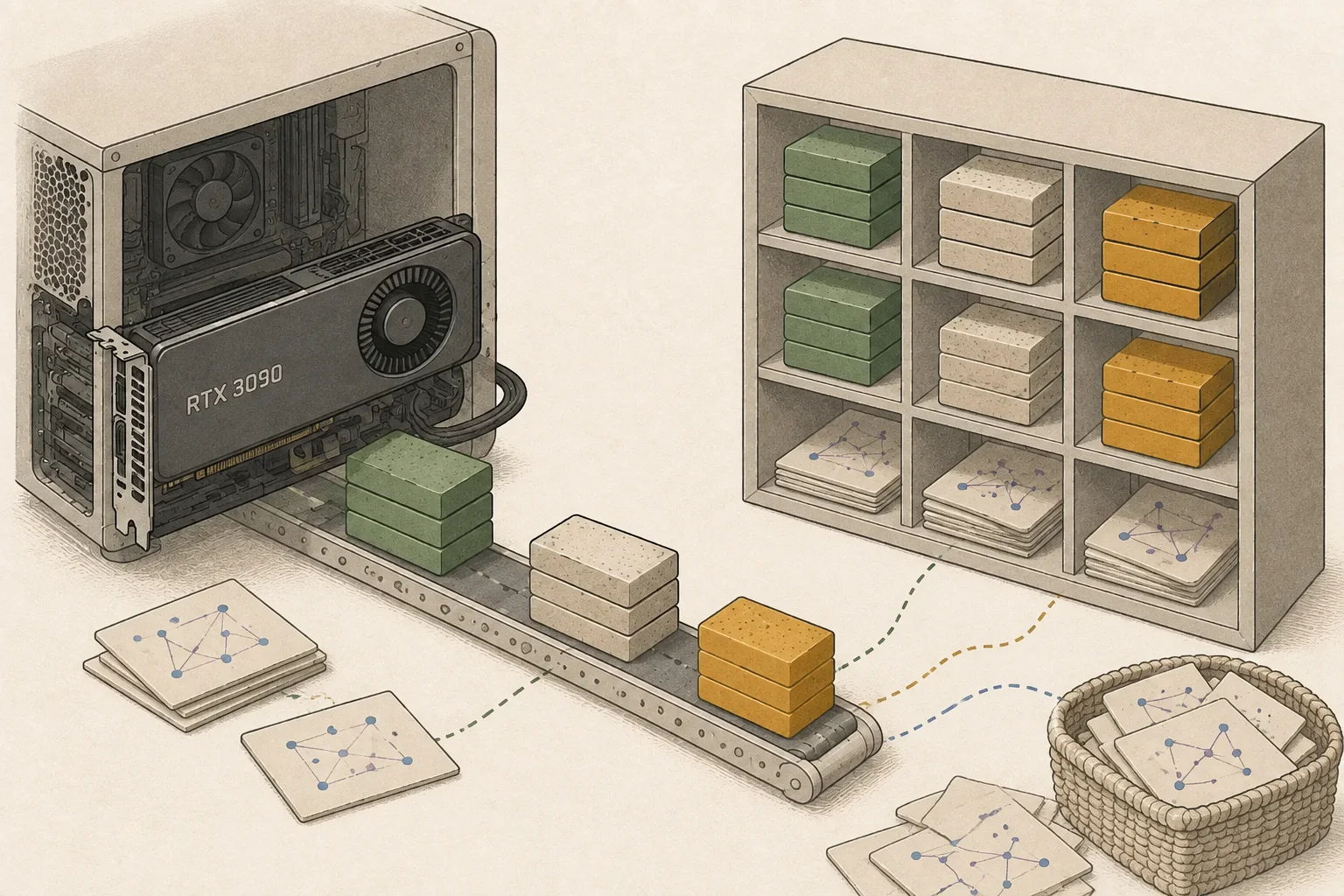
Enabling MQTT in Frigate
In the Frigate configuration, set mqtt.enabled, the broker address and the credentials. It must point at the same broker as Home Assistant, so match the address exactly.
Restart Frigate after the change and the log shows the broker connection. If it fails, check the username, password and port in that order.
mqtt:
  enabled: True
  host: 192.168.0.10
  user: mqtt-user
password: your_passwordInstalling the Frigate integration
Install Frigate from HACS, restart, then add the Frigate integration under Devices & services. Through the broker it exposes Frigate's cameras and events as entities.
To browse recordings in the media browser, media_source must be enabled. If alerts will include snapshots, check that setting too.
Building the notification automation
Trigger the automation on the MQTT event and notify only when the detected object is a person. Alerting on every vehicle and animal rings dozens of times a day and gets switched off.
Defining zones such as the porch or yard filters out passers-by. Adding a night-time condition makes the alerts far more useful.
Tuning to cut notification fatigue
One person lingering for a few seconds produces several detections and several alerts. Recording the last alert time and suppressing repeats for a while removes the duplicates.
Put the camera name and time in the message so the scene is obvious at a glance. To include a snapshot, check that the notification service accepts images.
Terminology notes
MQTT — A lightweight messaging protocol in which devices and programs publish and subscribe through a broker. Only programs pointed at the same broker exchange values.
Back to the textMQTT broker — The middle server that collects published MQTT values and passes them to subscribers. In Home Assistant the Mosquitto app fills that role.
Back to the text
Frequently asked questions
- What should you check first in this article?
- Frigate publishes detections over MQTT, and Home Assistant turns those events into automations. Both must see the same broker, so configure the MQTT integration first, then add the Frigate integration.