Executable programs and extensions
Connect OpenClaw to a Local Model with Ollama or Managed llama.cpp
Verify a complete tool call, not just that a model appears in the picker.
Set up the Gateway1 and model server separately. If you already use Ollama, connect that model; if you want OpenClaw to manage engine selection, use its managed llama.cpp path. Before setting either as the default, verify a short chat, a Gateway-routed reply, and a read-only tool call2 in order.
Prepare the Gateway and model server separately
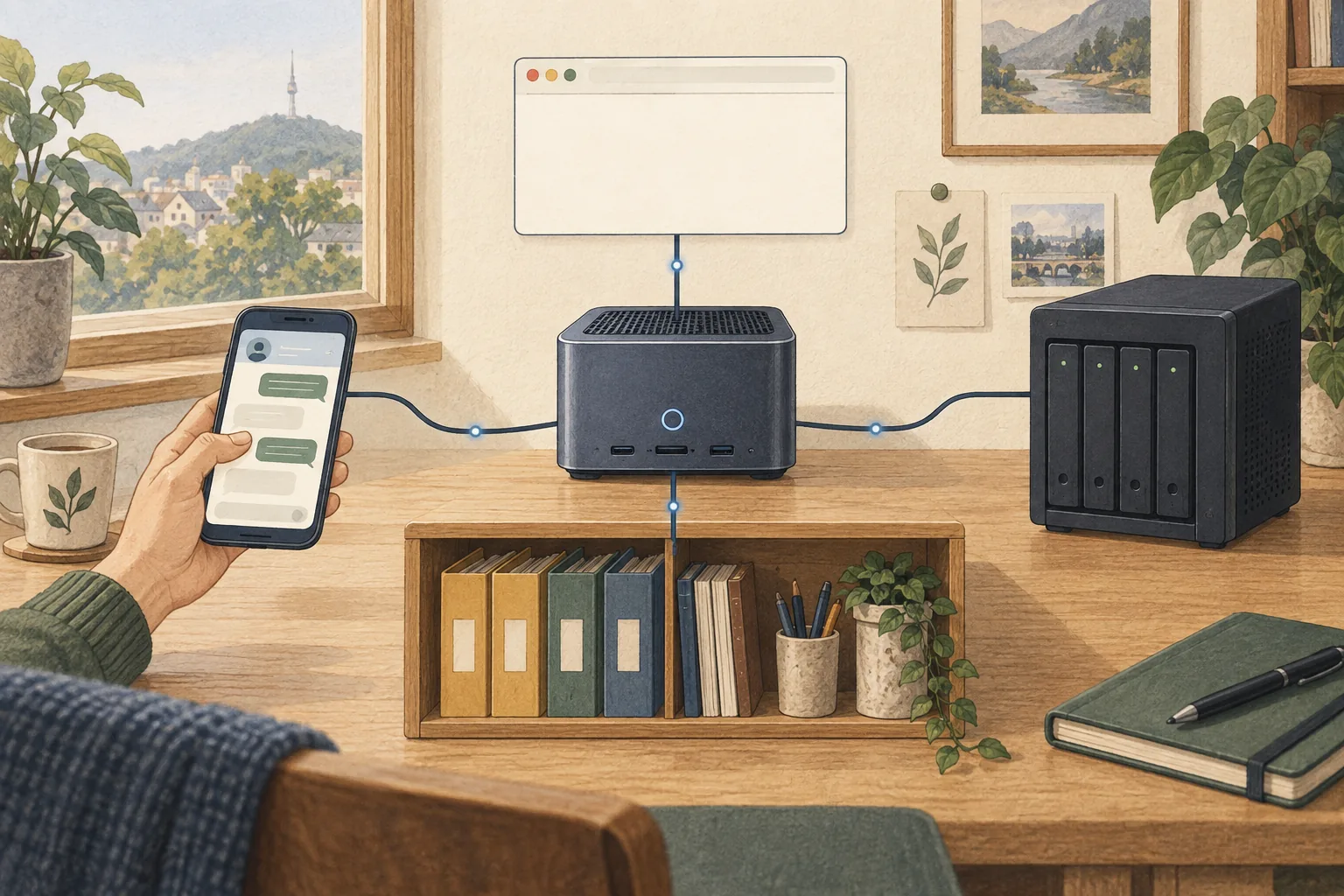
OpenClaw is a Gateway that coordinates channels and agent tasks. Ollama or llama.cpp serves the model and performs inference3. They can be installed on the same computer, but separating their roles helps you identify which side to inspect when a model connection fails.
After installing OpenClaw, prepare the Gateway and local model server as separate components. The commands below are for macOS, Linux, and WSL2; on Windows, use the official Windows Hub or PowerShell instructions. Connecting a model server is a separate step from installing OpenClaw.
Check the supported Node version and installation path
The official installer supports Node.js 24.16+ or 26.1+ and recommends Node 26. If Node is already present, confirm that it meets both the version and SQLite runtime4 requirements. Before installing, check the current supported versions in OpenClaw’s official install guide.
The official default installer example for macOS, Linux, and WSL2 is curl -fsSL https://openclaw.ai/install.sh | bash. Windows PowerShell has a separate installer. This command runs a downloaded script in your shell, so verify that the address matches the official documentation and review the installer details first. On managed or sensitive computers, inspect the script or choose another supported installation path.
Ollama connects a model server you already manage
The Ollama path suits users who want to manage the server and model separately. Install Ollama from its official download page, start it, then fetch a model. OpenClaw’s Ollama guide gives ollama pull gemma4 as an example; it is not a standing recommendation for that model. Check the exact name, tag, and tool-calling support of the model you plan to download in Ollama’s official catalog.
During OpenClaw setup, choose the ollama authentication option and provide the local or LAN address and model ID. A local endpoint does not require a real secret and can use the ollama-local marker; public remote hosts or Ollama Cloud require valid credentials. Do not expose the model server to the public internet just to reach it remotely; follow OpenClaw’s network and authentication guidance.
openclaw models list --provider ollamaManaged llama.cpp guides model selection and server setup
If you are unsure which local model to choose or do not want to tune every model’s runtime options yourself, consider OpenClaw’s managed llama.cpp path. The official local-model guide says to install the llama.cpp plugin, run openclaw onboard, and choose Managed local server. Setup shows the Gateway host, model, download size, and execution backend, then verifies a real tool call before changing the default model.
This path does not guarantee the same model or speed on every computer. The official guide says memory needs vary with model weights, context size, runtime, and other work on the host. The 8 GiB lowest host-memory floor among managed catalog recipes at 64K context applies to a particular recipe; it is not a minimum system requirement or a guarantee of fit or speed for OpenClaw as a whole. Read the current hardware checks in setup and account for memory used by other applications.
Verify chat, Gateway routing, and tool calls in order
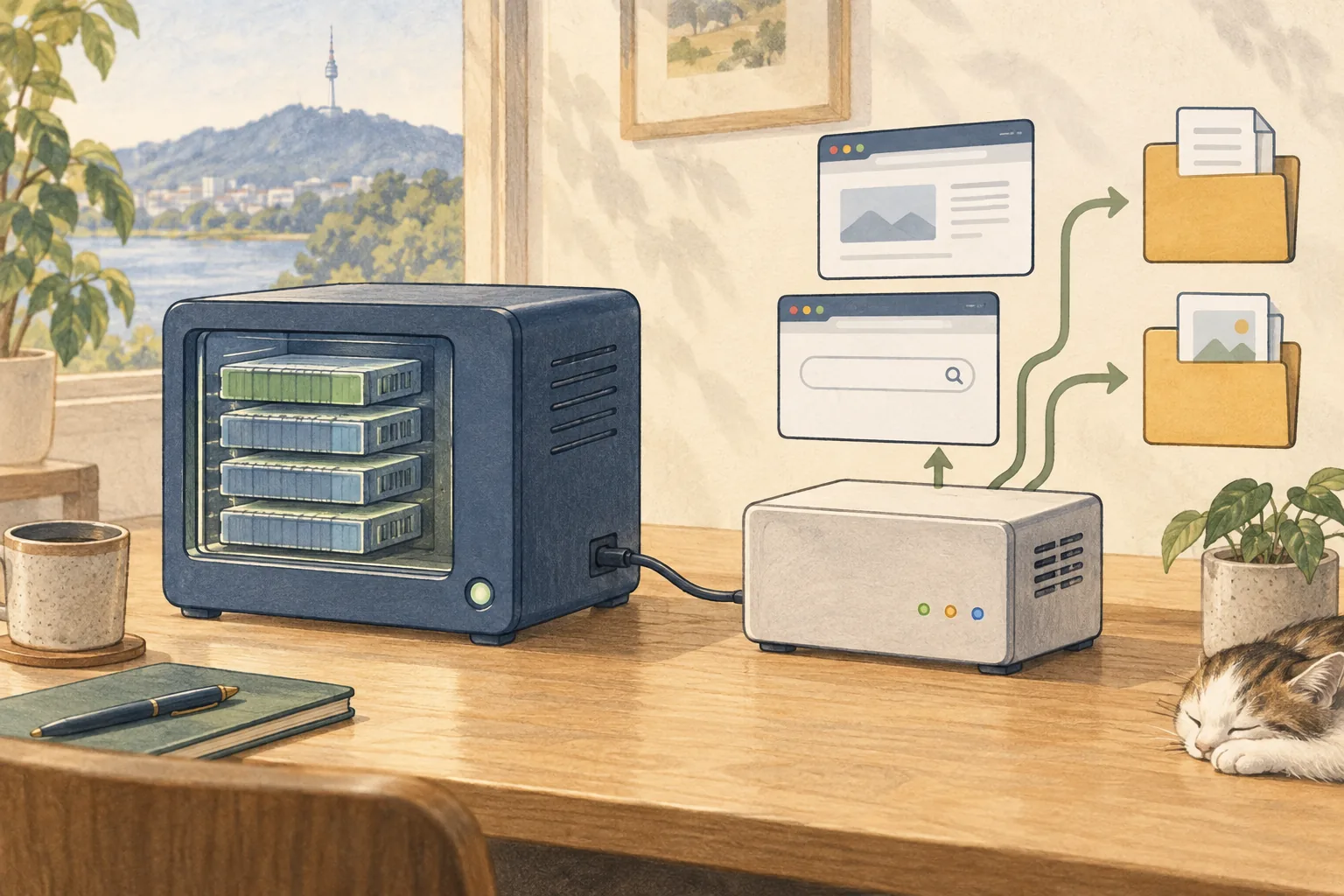
A model appearing in the list leaves more to check. Use the two commands below to verify a direct model reply and a Gateway-routed reply separately, then run a real tool call that reads a test folder. The three steps check the model, the connection path, and tool execution in turn.
First send a short prompt directly to the model, then send the same prompt through the Gateway. Replace <provider/model> with the local model ID shown by openclaw models list. In each JSON response, check for pong. These checks verify inference and Gateway routing, not agent tool execution. Finally, ask the agent to read a file in a read-only test folder and confirm the execution log records the tool and result.
openclaw infer model run --local --model <provider/model> --prompt "Reply with exactly: pong" --jsonopenclaw infer model run --gateway --model <provider/model> --prompt "Reply with exactly: pong" --jsonIf a task stops, isolate the failing step
If the model does not load, check its ID, server status, available memory, and whether the download completed. If ordinary chat works but tool calls fail, inspect the model’s tool-calling format, chat template, OpenAI-compatible endpoint, and the full prompt OpenClaw sends. A short prompt may fit while an agent request containing history and tool descriptions uses more memory or exceeds the model’s context window5.
Do not make a model the default before checking it. Local models may not include hosted providers’ safety filters. When processing outside documents, start with read-only access; even with local inference, messenger or search requests may still go to external services.

Choose a path and start with a small task
Choose Ollama if you already run it and want to manage model tags and the server yourself. If you want OpenClaw to guide model installation and hardware-aware selection, use openclaw onboard to review the llama.cpp plugin and Managed local server path.
Whichever path you choose, start by asking it to read one note in a test folder and draft a summary. Check the run record for the tool and arguments, then compare the answer with the source. Without a record of an actual file read, the model may have guessed the content.
If the record differs from what you expected, locate the failing step before reinstalling. Check whether the problem is the model, server, full prompt, or tool format before setting it as the default. Add only the messenger, automation, or file-write permissions you need after this read-only task works.
Terminology notes
Gateway — A program that receives requests across clients, channels, models, or tools and routes them to the appropriate path. It is not necessarily the server that runs the model itself.
Back to the textTool call — A structured request from a model for an external function such as reading a file, searching, or running a command. The agent runtime and its permission settings decide whether the request is actually executed.
Back to the textInference — The process of using a trained model to compute an output for an input. Here, local inference means running the model on the user’s device.
Back to the textRuntime — The software environment that provides facilities needed while a program runs. In local AI it can also refer to a model execution engine; a GPU runtime library and a complete serving app are different components.
Back to the textContext window — The token span of input and generated content a model can handle in one request. The supported limit and memory use depend on the model and runtime settings.
Back to the text