
Image and video generation
Last updated
Qwen-Image-2.1-Turbo: How Do You Generate and Edit Images in 8 Steps?
How Do You Generate and Edit Images with Qwen-Image-2.1-Turbo?
Qwen-Image-2.1-Turbo is a 7B model for creating images from text prompts1 and editing reference images. Diffusers uses the 8-step schedule saved with the model. This guide installs CUDA-enabled PyTorch2 and Diffusers, saves a square image, then edits one with the same pipeline3.
This recipe starts in a Python environment with a CUDA4 GPU5 and CUDA-enabled PyTorch ready. Create a virtual environment6, install Diffusers, load the model files, then use the same pipeline for generation and editing.
Turbo Changes the Checkpoint and Sampling Schedule
Image models start from noise and refine it over several steps. Turbo distills Qwen-Image-2.1 to perform this process in eight steps. You can use it to iterate on a prompt or try several backgrounds for the same photograph.
Diffusers automatically loads the 8-step schedule stored in the checkpoint7. Increasing or reducing the step count alone does not change that schedule. To test another schedule, pass sigmas directly when calling the pipeline.
Prepare the Supported Diffusers Version
First create and activate a project virtual environment. Choose and run the command for your operating system and CUDA version on the PyTorch installation page, then use the command below to install the latest Diffusers version required by the Turbo checkpoint and its additional packages.
python -m venv .venv
source .venv/bin/activate
python -m pip install --upgrade pip
# Install the CUDA-enabled PyTorch command selected from pytorch.org/get-started/locally/
pip install git+https://github.com/huggingface/diffusers.git
pip install "transformers>=5.17.0" accelerate pillowGenerate and Save a First Image with a Short Prompt
Save the code below as qwen_turbo.py and run it in the virtual environment you installed. The model files download on the first run. The script saves an image at 2048×2048, the official 1:1 preset.
import torch
from diffusers import QwenImage21Pipeline

pipe = QwenImage21Pipeline.from_pretrained(
    "Qwen/Qwen-Image-2.1-Turbo",
    dtype=torch.bfloat16,
).to("cuda")

prompt = "A small ceramic teapot on a wooden table, soft morning light, editorial product photo"
image = pipe(
    prompt=prompt,
    width=2048,
    height=2048,
    use_kv_cache=True,
).images[0]
image.save("qwen-turbo.png")python qwen_turbo.pyReuse Context with the KV Cache
In the preceding code, use_kv_cache=True reuses information from the prompt and reference image across steps, reducing repeated processing. Start with the default CFG8 of 1 and adjust the prompt and output dimensions first.
Edit an Image by Providing a Reference
Place a reference image named reference.png in the same folder as qwen_turbo.py. Append the code below to the generation code to reuse the same pipe for editing. Save the script, then run python qwen_turbo.py again to create both images.
from diffusers.utils import load_image

input_image = load_image("reference.png").convert("RGBA")
edit_prompt = "Keep the vase shape and flowers; replace the plain background with a sunlit pale-blue studio backdrop."

image = pipe(
    prompt=edit_prompt,
    image=input_image,
    width=2048,
    height=2048,
    use_kv_cache=True,
).images[0]
image.save("qwen-turbo-edit.png")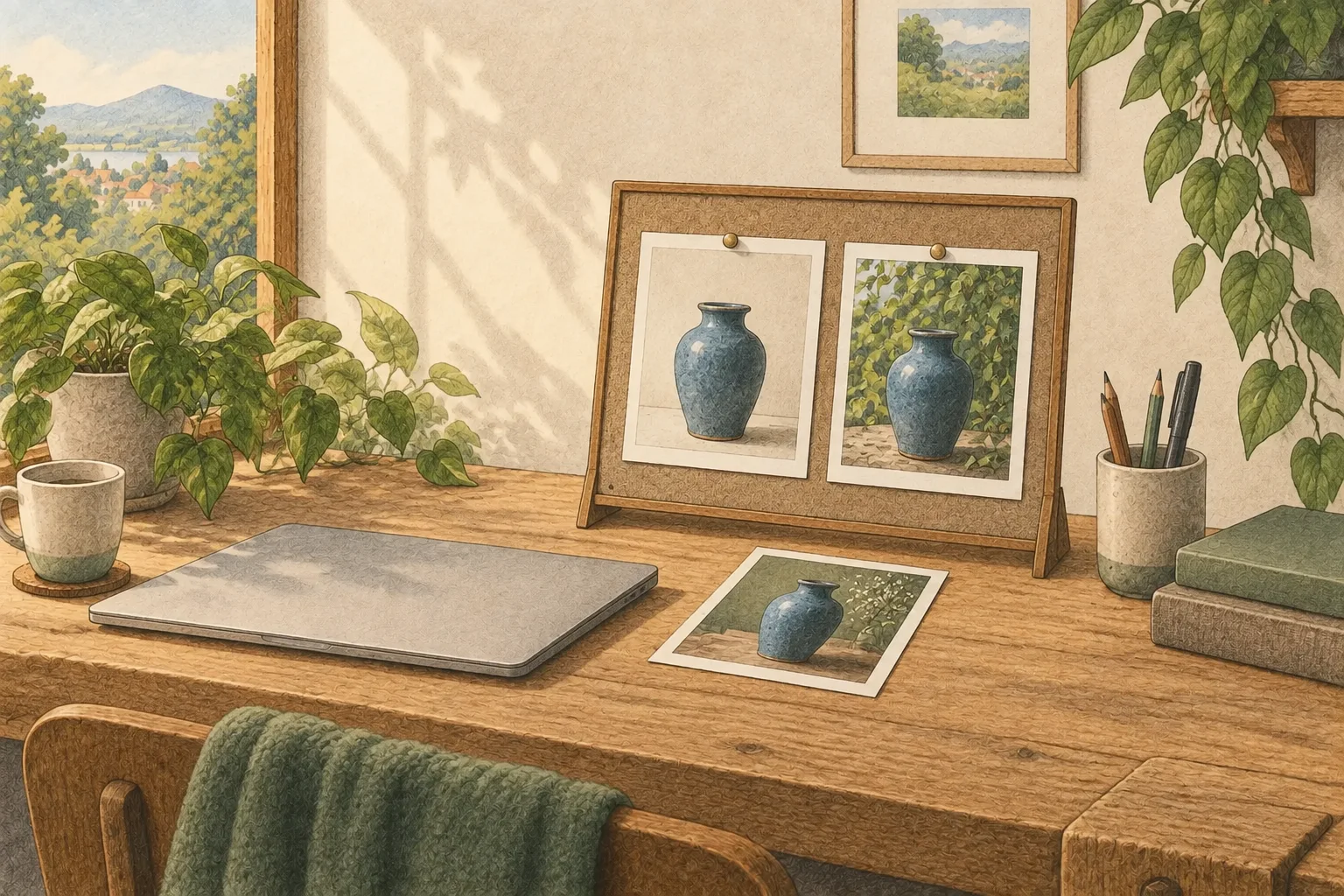
Choose Output Dimensions from the Aspect-Ratio Presets
Choose an output aspect ratio from the official presets in the table and enter its width and height in the code. The first run uses a 1:1 size. Changing both dimensions also changes the pixel count and aspect ratio, so choose values that match the output you want.
| Aspect ratio | Width × height |
|---|---|
| 1:1 | 2048 × 2048 |
| 4:3 | 2400 × 1792 |
| 3:4 | 1792 × 2400 |
| 3:2 | 2528 × 1696 |
| 2:3 | 1696 × 2528 |
| 16:9 | 2752 × 1536 |
| 9:16 | 1536 × 2752 |
Width and height are in pixels. Start at 2048×2048 for a square or 1536×2752 for a vertical poster.
Check the Runtime First When Something Fails
For an ImportError when loading QwenImage21Pipeline, check that the virtual environment is active and reinstall Diffusers in that environment. Close other GPU workloads if CUDA runs out of memory. An error during model loading points to insufficient space for weights; an error during generation may be helped by reducing output dimensions.
If the image misses part of your instruction, separate the elements to keep from those to change in the prompt, then try again at a test output size. Change the input image, instruction, and resolution one at a time to see which condition affects the result.
Check the License Before Commercial Use
The Qwen Research License allows non-commercial use of the model for research and evaluation. Commercial use requires a separate license from Qwen.
Terminology notes
Prompt — The input text sent to a model. For generative models it describes the desired result and strongly shapes the output.
Back to the textPyTorch — A software framework for building and running AI models. Check the compatible PyTorch version and hardware support along with the model.
Back to the textPipeline — A sequence of processing stages from input to output. Different models or tools may be used at each stage.
Back to the textCUDA — A software platform for general-purpose computing on NVIDIA GPUs.
Back to the textGPU — A processor designed to handle many calculations in parallel. It performs model computations during AI inference.
Back to the textPython virtual environment — An isolated space for installing Python packages per project, helping reduce package-version conflicts.
Back to the textCheckpoint — A file containing saved model weights and related state. Versions or tasks in one model family may use different checkpoints.
Back to the textCFG — A technique that combines conditioned and unconditioned predictions to adjust how generation follows its input. Distilled models may require it to be disabled; recommended values vary by model.
Back to the text
Frequently asked questions
- What should you check first in this article?
- Qwen-Image-2.1-Turbo is a 7B model for creating images from text prompts and editing reference images. Diffusers uses the 8-step schedule saved with the model. This guide installs CUDA-enabled PyTorch and Diffusers, saves a square image, then edits one with the same pipeline.