
Image and video generation
Last updated
Run Oasis 500M Locally: Generate Game Video from an Image and Action File
Give `generate.py` an opening image and action trace to save predicted frames as a video file.
The released Oasis 500M inference1 code reads an opening image or video and an action file, then generates following frames2 conditioned on those controls. Clone open-oasis into a Linux NVIDIA CUDA3 environment, accept the Hugging Face access conditions yourself, download the DiT4 and ViT-VAE weights, and run python generate.py to save video.mp4 in the working directory.
The action file conditions the next frames
Oasis is a world model that generates the next game view from an opening scene and user actions. The released 500M inference code reads conditioning frames from an image or video, then uses a separate action file to generate following frames and save them as video.mp4. This is offline script-based inference, not a browser game with a live keyboard-control interface. Official open-oasis repository
The model card describes the website’s live demo as a more powerful version. Oasis 500M is a separately released checkpoint5 with its own inference code, so use this local path to create an output file rather than expecting the live demo’s latency or interaction. Oasis 500M model card
- What Is a World Model? How AI Generates the Next Scene Locally
- Run LingBot-World V2 on a Mac: Turn an Image and Camera Path into Video
- Local image generation: software, hardware and your first image
- Generate an image locally with Z-Image-Turbo
- Install LTX-2.5 locally and generate your first video
- Add sound effects to a video with MMAudio
- Run the Matrix-Game 4.0 Local Browser Demo on an RTX 5090
- Turn an image into a short video with Cosmos 3 Edge on DGX Spark
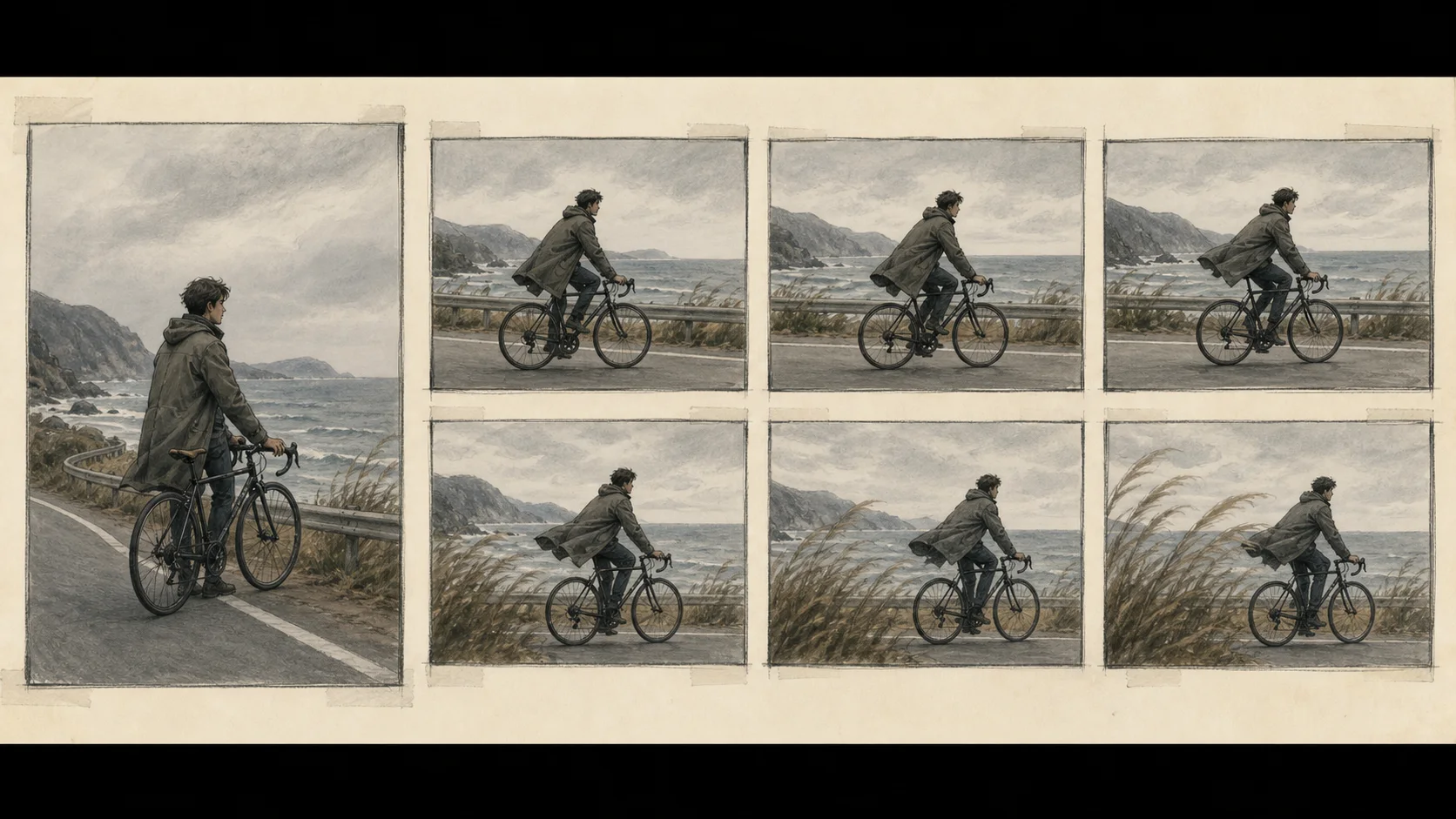
Use a Linux Python environment with a visible NVIDIA GPU
The released generate.py starts by checking whether torch.cuda.is_available() is true. This code will not run with CPU-only PyTorch6 or on a device without available CUDA. The repository README installs PyTorch and torchvision from its CUDA 12.1 package index, then adds einops, diffusers, timm, and av. Before installing, confirm that your GPU7 and driver support the selected PyTorch CUDA package. The repository does not publish a minimum VRAM8 figure.
git clone https://github.com/etched-ai/open-oasis.git
cd open-oasis
python3 -m venv .venv
source .venv/bin/activate
python -m pip install --upgrade pip
python -m pip install torch torchvision --index-url https://download.pytorch.org/whl/cu121
python -m pip install einops diffusers timm av
Review the access terms and download both checkpoints
Oasis files on Hugging Face require sign-in and acceptance of access conditions. Read the terms that apply to you on the model page, and continue under your own account only if you agree to the condition that shares contact information. Each user must make that decision; this guide does not accept the terms for you. The model card shows the access status. Etched/oasis-500m
Download two files: the DiT checkpoint oasis500m.safetensors and the ViT-VAE checkpoint vit-l-20.safetensors. Sign in to your own account with hf auth login, then use --local-dir . to save both in the current open-oasis/ folder. Do not share your token9 or write it into manuscripts or source code. Model-file instructions
python -m pip install -U huggingface_hub
hf auth login
hf download Etched/oasis-500m oasis500m.safetensors --local-dir .
hf download Etched/oasis-500m vit-l-20.safetensors --local-dir .
Generate the first clip from the sample image and action trace
With both weight files in the repository root, run python generate.py from open-oasis/. The defaults use sample_data/sample_image_0.png and sample_data/sample_actions_0.one_hot_actions.pt, and write video.mp4. The first run loads the models onto the GPU and generates frames, so wait for the inference arguments and progress indicator to finish in the terminal. Default paths in generate.py
When the run finishes, open open-oasis/video.mp4 and check that it contains frames following the opening scene. The script defaults to --num-frames 32 and saves the video with --fps 20. This --fps value sets the video file’s playback frame rate; it does not measure model-generation speed. Official basic usage
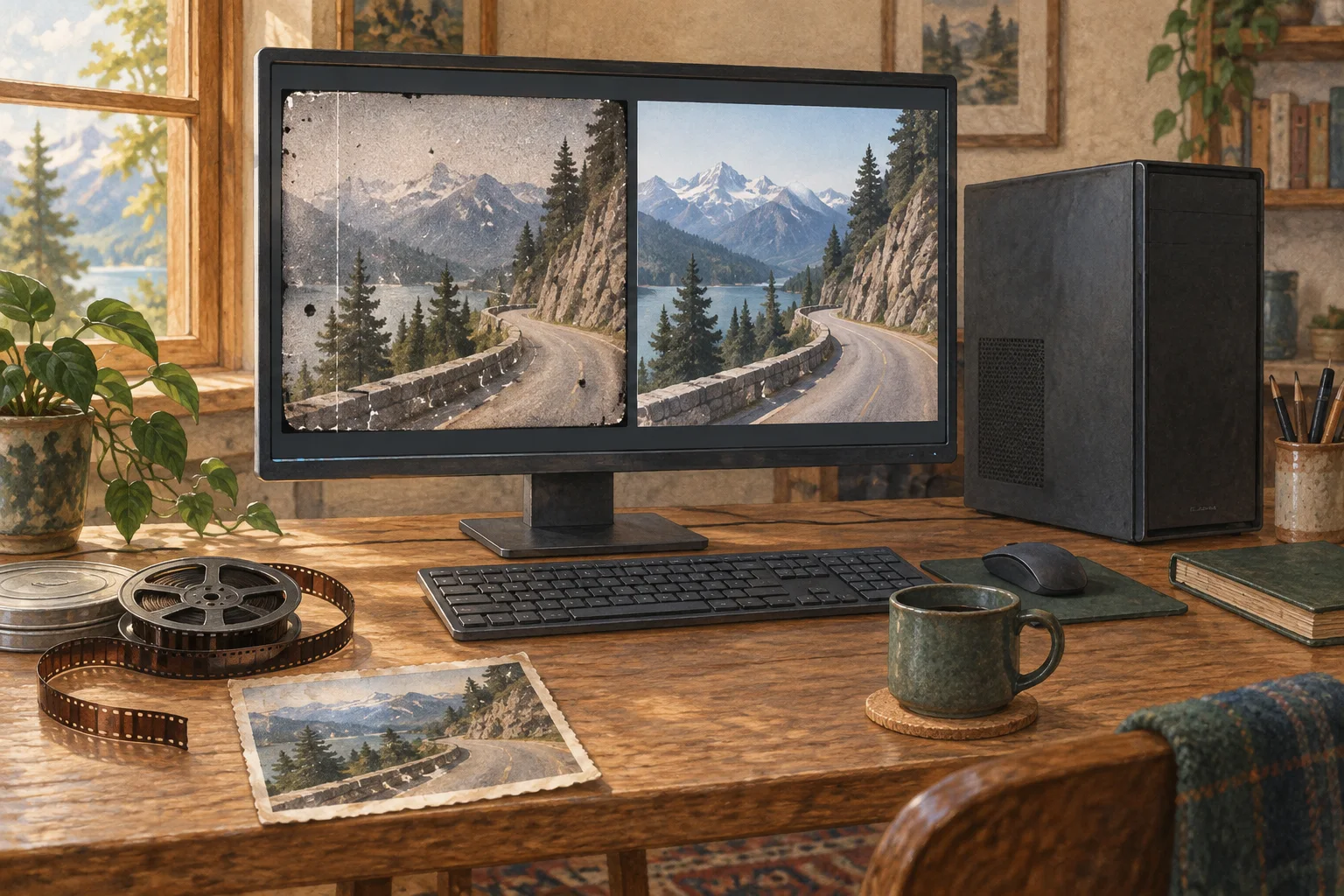
Replace the opening image while keeping the sample action file
To use your own PNG, JPG, or JPEG as the opening frame, set its path with --prompt-path. Leaving the default action file unchanged uses the example control sequence. To change the actions too, provide an .actions.pt or .one_hot_actions.pt file and set its path with --actions-path. generate.py reads the action array from that file and passes it into the frame-generation model.
Replace /path/to/opening-frame.png with the actual image path. For a video input, use --video-offset to select where to read and --n-prompt-frames to set the number of conditioning frames. Run python generate.py --help to see available options; --num-frames changes the output frame count.
python generate.py \
  --prompt-path /path/to/opening-frame.png \
  --actions-path sample_data/sample_actions_0.one_hot_actions.pt \
  --output-path video.mp4
For CUDA or file errors, start with the device and paths
If the script immediately raises AssertionError, check whether it failed the CUDA-availability assertion. In the activated environment, run python -c 'import torch; print(torch.cuda.is_available(), torch.version.cuda)'. If the first value is False, PyTorch cannot see a CUDA device. Install a CUDA build compatible with your GPU and driver, then run the check again. Oasis’s published setup command uses the CUDA 12.1 wheel index.
If the script cannot find a checkpoint, run pwd to confirm that you are in open-oasis/, then check that both .safetensors files are there. If you stored them elsewhere, pass their actual paths with --oasis-ckpt and --vae-ckpt. Checkpoint options in the inference code
Start with the default .one_hot_actions.pt file, then compare the opening frame with video.mp4 when generation finishes. Change only the image or action file on the next run to isolate its effect. The repository does not publish minimum GPU memory. If CUDA or memory errors occur, reduce the output frame count with the supported --num-frames option and try again.
Terminology notes
Inference — The process of using a trained model to compute an output for an input. Here, local inference means running the model on the user’s device.
Back to the textFrame — A single image that makes up part of a video.
Back to the textCUDA — A software platform for general-purpose computing on NVIDIA GPUs.
Back to the textDiT — Short for Diffusion Transformer: a model architecture that uses a transformer to refine noisy representations across diffusion steps.
Back to the textCheckpoint — A file containing saved model weights and related state. Versions or tasks in one model family may use different checkpoints.
Back to the textPyTorch — A software framework for building and running AI models. Check the compatible PyTorch version and hardware support along with the model.
Back to the textGPU — A processor designed to handle many calculations in parallel. It performs model computations during AI inference.
Back to the textVRAM — Memory used by a graphics card’s GPU to store model weights and intermediate values.
Back to the textToken — A unit into which a model divides input or output for processing.
Back to the text
Frequently asked questions
- What should you check first in this article?
- The released Oasis 500M inference code reads an opening image or video and an action file, then generates following frames conditioned on those controls. Clone `open-oasis` into a Linux NVIDIA CUDA environment, accept the Hugging Face access conditions yourself, download the DiT and ViT-VAE weights, and run `python generate.py` to save `video.mp4` in the working directory.
- How much memory does it need?
- The released `generate.py` starts by checking whether `torch.cuda.is_available()` is true. This code will not run with CPU-only PyTorch or on a device without available CUDA. The repository README installs PyTorch and torchvision from its CUDA 12.1 package index, then adds `einops`, `diffusers`, `timm`, and `av`. Before installing, confirm that your GPU and driver support the selected PyTorch CUDA package. The repository does not publish a minimum VRAM figure.
- Where can you check the conditions and sources?
- The model card describes the website’s live demo as a more powerful version. Oasis 500M is a separately released checkpoint with its own inference code, so use this local path to create an output file rather than expecting the live demo’s latency or interaction. [Oasis 500M model card](https://huggingface.co/Etched/oasis-500m)