
Executable programs and extensions
Last updated
Run local AI on a Mac with oMLX: what is new in 0.7.1rc1?
Connect Splash and choose per-model runtime settings in oMLX 0.7.1rc1.
oMLX runs MLX1 models on Apple Silicon Macs and answers requests from apps. Release candidate 0.7.1rc1 adds the Splash external engine and Muse Spark Open support. The earlier 0.7.1.dev1 measurements below describe that development release; test new features with your chosen model and identical inputs.
Even if you are familiar with the existing 0.7.0 server, check the model list, first response, and logs again after updating. In particular, request handling can behave differently in a personal chat UI and on an app server with overlapping requests. The sections below help you decide whether to keep the stable setup, which development-build features to test, and what to measure.
First decide whether your setup needs 0.7.1.dev1
The stable version is 0.7.0, while 0.7.1rc1 is a release candidate for testing new features. Earlier 0.7.1.dev1 changes and reproduction steps are retained below. Check the version in the admin UI or with omlx --version, and separately identify whether you installed the DMG app or from source. Update the app using a new bundle; for source installs, match that version’s dependencies and kernels.
oMLX runs MLX checkpoints2, not GGUF3 files. It works on Apple Silicon Macs with macOS 15 or later. For a new installation, download the macOS DMG from the official Releases page, open it, move oMLX to the Applications folder, and launch it. Choose a model folder on the welcome screen, start the server, and download a compatible MLX checkpoint. Also check that the model format and quantization4 fit the Mac's unified memory5.
When the server is running, open the management UI at http://localhost:8000/admin and the chat UI at http://localhost:8000/admin/chat. Send a short question first to confirm that the model responds. If you are testing the development build, record your existing API6 connections and model folder so you can compare them with the previous setup.
After confirming a model response with a short question in the UI, check the basic API connection before moving on to performance comparisons. Replace YOUR_OMLX_API_KEY with the key configured in the management UI.
curl http://127.0.0.1:8000/health
curl http://127.0.0.1:8000/v1/models -H 'Authorization: Bearer YOUR_OMLX_API_KEY'A healthy response from /health and a usable model ID from /v1/models confirm that the server and API authentication are ready. If the connection fails, first check that the server is running. If the model-list request returns 401, verify the key. If the list is empty, check the model folder and checkpoint download status.
- Official oMLX 0.7.1.dev1 release
- Stable oMLX 0.7.0 release
- oMLX installation guide
- Mac Studio M3 Ultra 512GB baseline
- Prefill vs decode: should you look at TTFT or tok/s?
- MoE vs dense: why low active parameters still need memory
- GGUF vs MLX: which model format should you download?
- vLLM Metal 0.30: turn one Mac into a multi-user local AI server
- FlashAttention vs PagedAttention: what each one changes

Choose the inference engine per model in 0.7.1rc1
Version 0.7.1rc1, published October 15, 2026, is a release candidate. The stable release is 0.7.0; choose rc1 to test the new features. Record your models and settings before updating so you can return to the stable release with the same model if needed.
You can run Qwen3.8 or Qwen3.6 through Splash while keeping model management and the API address in oMLX. Select the installed Splash launcher in Settings → Integrations → External engines, then enable Use external engine in the model’s Model Settings → Advanced. Place the matching DFlash2 draft in an oMLX model directory too.
Muse Spark Open is newly supported as well. The 370 GB oQ3e build targets a 512 GB Mac; select the model first, then budget unified memory and room for other apps. The updated downloader recommends models that can load on your Mac.
For a server handling concurrent requests, start with the prefill changes
Prefill7 is the stage where a model reads a question and documents to prepare its first response. In 0.7.1.dev1, batched prefill combines chunks from multiple requests that begin input processing at similar times into one forward pass. It reduces repeated reads of MoE8 expert weights across requests while keeping each request's cache separate. No new setting is needed. This change is relevant on a server where requests from several users overlap.
The release table separates requests sent at once, requests spaced apart, and new requests joining ones that are already generating. When requests overlap, the next input can be prefilled alongside ongoing generation, so the effect is most relevant to first-token wait rather than single-request decode9 speed. Read the three patterns and hardware results in the table against your own request pattern.
On a personal Mac, first check whether requests actually overlap. Send the same prompt10 alone, then send overlapping requests and record first-token time and total completion time separately. Keep the model file, context, answer length, and number of concurrent requests the same. If even a single request has a slow first response, check input length, model loading, and memory state before focusing on batched-prefill results.
| Model and hardware | Request pattern | Before → after |
|---|---|---|
| Qwen3.8-Flash-Next oQ4e · M5 Max | 8 concurrent | 2.08 to 1.81 seconds (-13%) |
| Qwen3.8-Flash-Next oQ4e · M5 Max | 8 requests, 0.4-second intervals | 7.41 to 5.75 seconds (-22%) |
| Qwen3.8-27B oQ4e · M3 Ultra | 4 new requests joining 4 generating | 6.11 to 5.10 seconds (-17%) |
Choose Qwen optimizations and MTP for the model
The group-size-32 Qwen3.8-Flash-Next checkpoint optimizes the decode path. A separate MTP-on comparison on M3 Ultra measured 98 to 134 tok/s (+37%). The Flash-Next row in the table is the MTP-off measurement.
INT8 activation prefill for Qwen3.8-27B oQ8e applies to the prefill stage that reads long inputs. On an M5 Max, the reported result for 4K input was +25%; the 16K condition is in the table. Enable it for models that show this option under Experimental Features, then record first-token wait for a long document separately from generation speed.
Lightning MTP11 uses the model's next-token prediction head to propose candidates for verification by the main model, reducing sequential decode steps. The model families and file-editing conditions tested in the release are listed in the table. Enable it on a supported checkpoint, then compare completion time and output with standard generation on the same request.
The same release reports +31% decode for Qwen3.6-35B-A3B (M5 Max), +30% decode for GLM-5.3-Flash (M3 Ultra), and +48% on first run for DeepSeek V4.1 Flash (M3 Ultra). Match the stage and chip when reading each result, and keep those conditions in your test notes.
To try Qwen3.8-27B in another runtime12, check the files and context length13 in TensorFold's Mac memory update. Use the same input and record memory use, time to the first reply and completion time.
| Feature and model | Conditions and hardware | Published result |
|---|---|---|
| group size 32 · Flash-Next, MTP off | Decode · M3 Ultra | 39 → 91 tok/s (+133%) |
| INT8 activation prefill · Qwen3.8-27B oQ8e | 16K prefill · M5 Max | +38% |
| Lightning MTP · file editing with Qwen, Gemma 4, GLM-5.3, and MiMo | temperature 1.0 · M3 Ultra | 1.5 to 2 times faster |
Rebuild MLX kernels for source installations
If you update a source installation, oMLX 0.7.1.dev1 uses MLX 0.32.3. Kernels built with an earlier MLX version may be rejected and run through a slower fallback. Following the release notes, prepare the existing repository and virtual environment14, then run make kernels from the repository folder.
make kernelsWhen the build finishes without errors, restart oMLX. Check that Engine Versions in the management UI shows MLX 0.32.3, then send a short prompt you already use. A loaded model that returns a response confirms the basic path is working.
If make kernels fails, inspect the first error line and active Python virtual environment. If the command finishes but speed is lower, check the MLX version and kernel status in Engine Versions and look for kernel-loading errors in the server log. For an app bundle, use the official download for that installation type instead of this source procedure.

Review model-specific advanced settings when you need them
The release removes about 150 debug OMLX_* environment variables and no longer reads them. This includes OMLX_MOE_EXPERT_OFFLOAD, OMLX_QWEN35_ANE_PREFILL, and OMLX_RDMA_STAGE_LINKS. Adjust a feature through the model settings in the management UI when that model supports it.
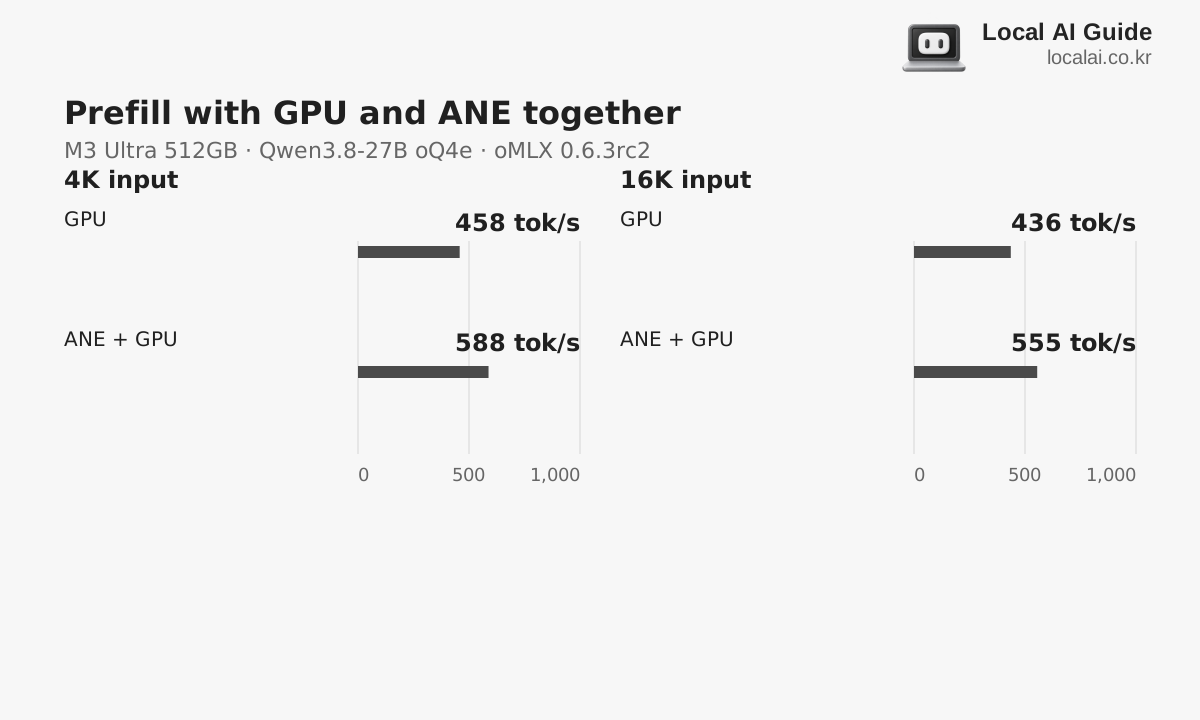
For example, Experimental Features may show options such as INT8 activation prefill or ANE15 prefill only when the selected model supports them. Record the current setting, change one item, and send the same question. Compare input token16 count, first-token time, generation speed, and errors to see whether the setting affects your actual workload.
If the model list does not load, first check the model folder and download status. If the server opens but does not respond, look for the first error in the management UI status and server log. For a memory error, unload another model or reduce concurrent requests, then retry with a short input. If only speed changed, also check whether the input length, model file, and cache state were identical, not just the setting name.
Models beyond chat and management features use separate paths
Clef and OpenJev models return probabilities for choices after reading a state and its options, rather than generating free-form text each time. oMLX accepts TypeSafe System One requests at POST /v1/systemone. The question types are noul, choice, and score; oMLX can detect the checkpoint automatically, or you can set the model type to decision. This differs from a standard /v1/chat/completions request, so use it with an app or custom client that already supports this format.
EmbeddingGemma 2 now accepts image and audio inputs, and rerank requests add instruction and max_length options. The audio loaders improve ref_audio handling for Fish, TADA, and LongCat. Apps using these models should send images, audio, and reference voice inputs in the formats documented by their model cards and APIs.
The web dashboard has a new layout with detailed logs, links to settings sections, Restart and Unload all controls, and bundled benchmark presets. After updating, check model status in the new settings rail and Serving Stats area. Also locate model logs and restart controls in the management UI.
Decide whether to keep your current setup based on test results
If concurrent requests are rare and work finishes reliably on 0.7.0, you can stay on the stable release. If overlapping requests make the wait for the first token a problem, measure TTFT17 on 0.7.1.dev1 with the same prompt and number of concurrent requests. If input processing or generation is slow for a specific Qwen checkpoint, check support conditions for group size, MTP, and INT8 prefill, then compare only on that model.
Record the installed version, model repository and quantization, Mac chip, input length, number of concurrent requests, MTP and cache settings, first-token time, completion time, and answer quality. Release figures compare against the code immediately before each change, not against 0.7.0 as a whole. Decide whether to update based on repeatable changes in your model and requests.
If a basic request fails, first get the server and model working before enabling more optimization options. Confirm a normal response to the same short request, then test features one at a time to narrow down which change caused the issue. Keep real work on the stable server, and use these records to decide whether to isolate development-build testing or migrate after confirming the new feature.

Terminology notes
MLX — Apple’s machine-learning framework, which runs models using memory shared by the CPU and GPU on Apple Silicon.
Back to the textCheckpoint — A file containing saved model weights and related state. Versions or tasks in one model family may use different checkpoints.
Back to the textGGUF — A file format for model data, widely used by llama.cpp-based tools.
Back to the textQuantization — A way to represent model weights or values with fewer bits, reducing storage and memory use. The coarser representation can also affect accuracy.
Back to the textUnified memory — An architecture where the CPU and GPU share one physical memory pool.
Back to the textAPI — A defined interface that lets other code call a program’s functions.
Back to the textPrefill — The stage where an LLM reads the input prompt and computes representations for its tokens. Longer prompts contain more tokens to process.
Back to the textMoE — A model architecture that selects some of several expert subnetworks for each input. Total parameters can differ from the number activated for one token.
Back to the textToken decoding — The stage that generates successive output tokens using the input and the response produced so far.
Back to the textPrompt — The input text sent to a model. For generative models it describes the desired result and strongly shapes the output.
Back to the textMTP — A training objective or model component for predicting multiple future tokens at once. In speculative decoding, those predictions can be proposed as candidate tokens.
Back to the textRuntime — The software environment that provides facilities needed while a program runs. In local AI, it can also refer to a model execution engine.
Back to the textContext window — The token span of input and generated content a model can handle in one request. The supported limit and memory use depend on the model and runtime settings.
Back to the textPython virtual environment — An isolated space for installing Python packages per project, helping reduce package-version conflicts.
Back to the textNeural Engine — Dedicated hardware in Apple Silicon for neural-network computation.
Back to the textToken — A unit into which a model divides input or output for processing.
Back to the textTime to First Token — The time from sending a request until its first output token arrives.
Back to the text
Frequently asked questions
- What should you check first in this article?
- oMLX runs MLX models on Apple Silicon Macs and answers requests from apps. Release candidate 0.7.1rc1 adds the Splash external engine and Muse Spark Open support. The earlier 0.7.1.dev1 measurements below describe that development release; test new features with your chosen model and identical inputs.
- How much memory does it need?
- Muse Spark Open is newly supported as well. The 370 GB oQ3e build targets a 512 GB Mac; select the model first, then budget unified memory and room for other apps. The updated downloader recommends models that can load on your Mac.
Change log
These entries record changes to the site's guidance. They do not automatically check your installed engine or model version.
Added oMLX model-management, cache and acceleration guidance
Added steps for starting a server with an MLX model and checking the memory guard, model retention and cache reuse. It separates MTP and SpecPrefill requirements and distinguishes an input cache on SSD from model-weight offloading.